How to Automate Your Shopify Store with AI (2026 Guide)

Many Shopify store owners still do work that no longer needs a human. The good news: in 2026, you can automate your Shopify store with AI to handle much of it, from abandoned cart emails to inventory updates and customer support.
The good news: in 2026, that system is cheap, fast to set up, and available to every Shopify plan. Shopify Flow v4 launched in January 2026 as a free tool on all plans. Zapier added AI actions that let you insert ChatGPT into any workflow. AI chatbots now handle up to 67% of support tickets on average — according to Tidio
This guide walks you through how to automate your Shopify store with AI, step by step, starting with the workflows that usually save the most time.
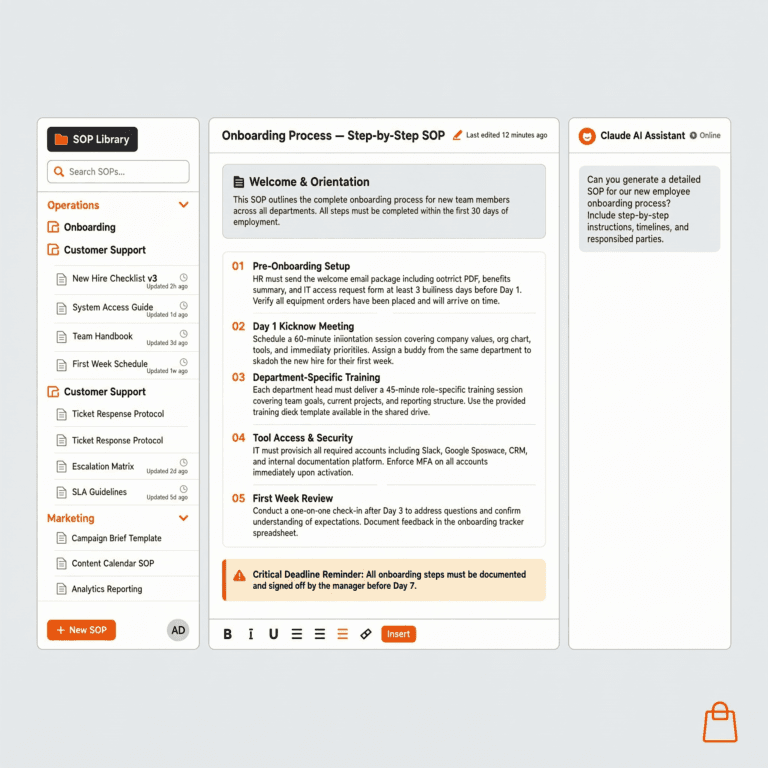
Shopify AI automation means using AI tools and rule-based workflows to handle repetitive store tasks without manual input. Once they run, document them in SOPs for Shopify founders. In 2026, it spans five main areas. The first is customer support: AI chatbots can resolve a large share of tickets, with Tidio reporting a 67% average resolution rate for its Lyro AI (according to Tidio). The others are email and marketing flows, order and inventory management, product content, and data sync between platforms. Shopify Flow is free on all plans, which removes the main cost barrier for smaller stores. For tasks that cross platforms, like connecting Shopify to Klaviyo, Slack, or Google Sheets, Zapier with AI actions is the most flexible option.
Last updated: June 2026
Table of Contents
What You Need Before You Start
No developer required. No advanced technical knowledge. Before diving in, make sure you have:
- A paid Shopify plan (Basic or higher — Flow v4 is free on all plans)
- A Klaviyo account (free up to 500 contacts)
- 3–4 hours to set everything up the first time
That’s it. Everything in this guide is no-code or low-code.
Start here: Shopify’s free built-in AI tools
Before installing any third-party app, activate the two AI tools already included in your Shopify plan at no extra cost.
Shopify Magic writes product descriptions, email subject lines, blog intros, and FAQ answers directly from your admin. It removes image backgrounds in one click. For stores with 10–50 new SKUs per month, Magic alone saves 4–6 hours of writing time every week.
Shopify Sidekick is your AI business analyst. Ask it plain-English questions about your store, like “Which products had the highest return rate last month?” or “Why did my conversion rate drop this week?” Sidekick reads your live store data and answers in seconds, instead of you digging through reports.
Both are free on all paid Shopify plans. Use them first. They require zero setup and cover the basics that most stores are still doing manually.
| Tool | What it does | Time saved | Cost |
|---|---|---|---|
| Shopify Magic | Product descriptions, emails, image backgrounds | 4–6 hrs/week | Free |
| Shopify Sidekick | Store analytics, plain-English Q&A on your data | 2–3 hrs/week | Free |

Step 1: Automate Customer Support
Track it: log the hours this task takes each week, before and after you automate it.
Customer support is often the highest-impact automation. Many of the questions a store gets are already answered in its FAQ, policies, or order history.
Install an AI chatbot that connects natively to Shopify — meaning it can look up a customer’s order status, return window, and purchase history automatically. The three best options:
- Tidio with Lyro ($29/mo): Best for stores under $50K/month. Install from the Shopify App Store, connect your store, train it on your top 20 FAQs in under 2 hours. Lyro handles 60–70% of tickets automatically.
- Gorgias ($80/mo): Best for larger stores. Handles 75–85% of tickets. Sees full customer profile — subscriptions, loyalty points, return windows — and acts on them.
- eesel AI ($49/mo): Best if your products are complex and require detailed answers from multiple knowledge sources. Need a full comparison of each chatbot? → The 7 Best AI Chatbots for Shopify in 2026
The setup process (Tidio example):
- Install Tidio from the Shopify App Store
- Connect your Shopify store (automatic data sync)
- Go to Lyro → Knowledge Base → import your FAQ page URL
- Add your top 5 policies (returns, shipping, sizing) as text
- Set Lyro to “auto-reply” for common question categories
- Test with 10 sample questions before going live
After 30 days, review the questions Lyro couldn’t answer and add them to the knowledge base. Check the resolution rate in Tidio’s reports each month to see it improve.
Step 2: Automate Workflows with Shopify Flow
Track it: log the hours this task takes each week, before and after you automate it.
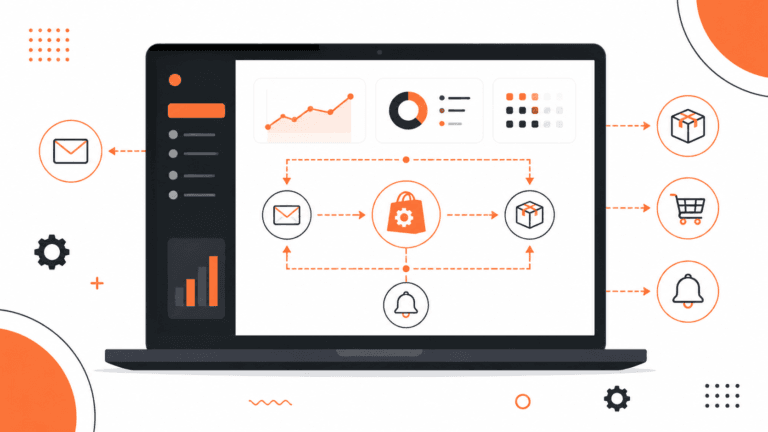
Shopify Flow is your native automation engine — free on every plan since January 2026. Flow works on simple Trigger → Condition → Action logic.
The 4 workflows to set up first
1. Abandoned cart recovery (biggest ROI)
- Trigger: Customer abandons cart
- Condition: Cart value > $30
- Action: Send 3-email sequence via Klaviyo (1hr, 24hr, 72hr delays)
- Result: shoppers get a timely reminder with no manual work. Track the recovered revenue in your flow reports.
2. Post-purchase review request
- Trigger: Order fulfilled
- Condition: No previous review from this customer
- Action: Send email 7 days after delivery asking for a review
- Result: every customer gets a review request, with no manual effort.
3. Low inventory alert
- Trigger: Product inventory drops below threshold (e.g., 5 units)
- Action: Send Slack or email notification to reorder
- Result: No more stockouts from missed inventory checks
4. VIP customer tagging
- Trigger: Order placed
- Condition: Customer’s total spend exceeds $500
- Action: Add “VIP” tag → triggers VIP email sequence in Klaviyo
- Result: Automated loyalty program with zero manual tagging
Each of these takes 30-60 minutes to set up once, then runs on its own.
Step 3: Automate Email & Marketing with Klaviyo
Track it: log the hours this task takes each week, before and after you automate it.
Klaviyo is where your Shopify data becomes automated revenue. Its AI predicts which customers are about to churn, which are ready to buy again, and what to send them.
The 3 flows every store must have active
Welcome series (new subscriber → 3 emails over 7 days):
- Email 1: Welcome + brand story (send immediately)
- Email 2: Best sellers or starter guide (day 3)
- Email 3: Social proof + first purchase incentive (day 7)
Abandoned cart sequence:
- Email 1: “You left something behind” (1 hour after abandonment)
- Email 2: Product benefits + FAQ (24 hours)
- Email 3: Urgency or incentive (72 hours)
Win-back campaign (lapsed customers):
- Trigger: No purchase in 90 days
- Klaviyo AI automatically identifies this segment
- 2-email sequence: “We miss you” → discount offer
How to set up Klaviyo AI segmentation:
- In Klaviyo → Segments → Create Segment
- Select “Predictive Analytics” → “Expected next order date is within 30 days”
- Name it “Ready to Buy” — Klaviyo’s AI builds this from your purchase history
- Target this segment with your highest-converting campaign
Step 4: Automate Cross-Platform Tasks with Zapier
Track it: log the hours this task takes each week, before and after you automate it.
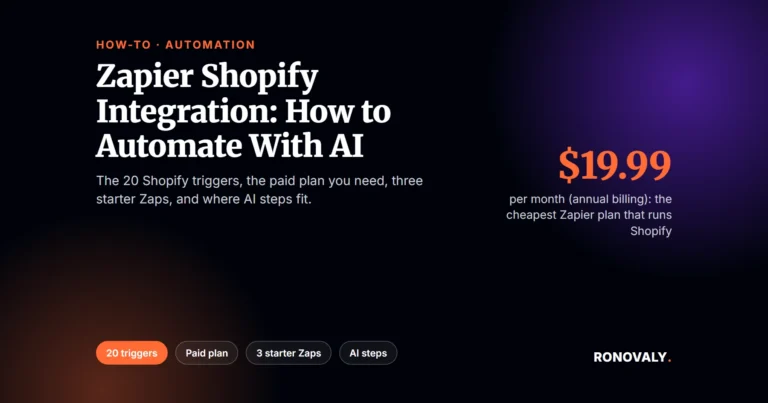
Some tasks span multiple platforms — and that’s where Shopify Flow reaches its limits. Zapier connects Shopify to 6,000+ apps and lets you add AI steps (ChatGPT, Claude) into any workflow.
For the full walkthrough — connecting the integration, building your first Zap with Copilot, and the 3 highest-ROI workflows to automate first — see our complete guide to the Zapier Shopify integration.
For AI-powered product recommendations and upsells, see the Rebuy Shopify review.
Zapier with AI Actions lets Shopify store owners build workflows that cross several platforms and include an AI-written step. For example, when a customer leaves a 1-star review, Zapier captures the text, passes it to ChatGPT (“write a professional, empathetic response to this review”), and posts the draft reply to Slack for one-click approval. No negative review goes unanswered. Other useful Zapier + Shopify AI workflows include personalized thank-you emails after high-value purchases, syncing new customers to Google Sheets with AI-written lead scores, and translating product descriptions for international markets. Zapier AI Actions are available on its paid plans.
3 Zapier + AI workflows worth setting up
1. AI response to 1-star reviews
- Trigger: New review under 3 stars
- Action: Pass review to ChatGPT → professional 3-sentence response
- Action: Post draft to Slack for 1-click approval
2. High-value order → personalized thank-you draft
- Trigger: New Shopify order over $300
- Action: Pass customer name + product to Claude → warm 4-sentence thank-you note
- Action: Add to Klaviyo as a draft for review
3. Inventory reorder with AI demand prediction
- Trigger: Product stock drops below threshold
- Action: Pull last 90 days of sales data → pass to ChatGPT
- Action: Send Slack message with reorder quantity recommendation
Step 5: Automate Content & Product Descriptions

Track it: log the hours this task takes each week, before and after you automate it.
Every new product needs a description. Writing one from scratch can take 15-30 minutes. Shopify Magic gives you a first draft in seconds.
The hybrid workflow that works:
- Open your product in Shopify admin
- Add 3–5 bullet points about key benefits
- Click “Generate description” (Shopify Magic)
- Review and edit for brand voice (a few minutes instead of starting from scratch)
- Copy the SEO title and meta description Shopify Magic suggests
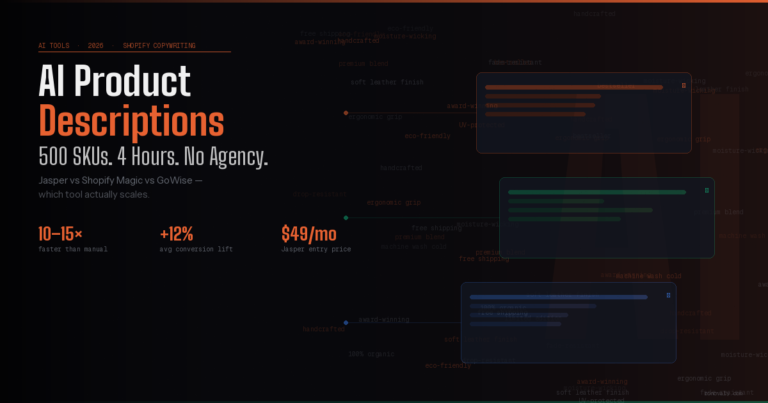
For stores with 50+ SKUs to process at once, use GoWise or VerbiAI ($19–39/mo) to bulk-generate via CSV upload.
Step 6: Automate inventory and demand forecasting
Track it: log the hours this task takes each week, before and after you automate it.
A stockout on a best-seller means lost sales until you restock. The fix isn’t more spreadsheet time. It’s tools that flag demand before you run out.
What to automate in inventory management:
- Reorder alerts: Shopify Flow sends a Slack notification when any SKU drops below your threshold. About 20 minutes to set up, and then it runs on its own.
- Demand forecasting — Use the Zapier + AI workflow from Step 4: when stock drops below threshold, pull 90 days of sales data and ask ChatGPT how many units to reorder. Gets smarter with every cycle.
- Seasonal spike preparation — Klaviyo’s predictive analytics shows when your top customers typically reorder. Cross-reference with your inventory levels to flag potential stockouts 3–4 weeks ahead.
- Dead stock identification — Shopify Sidekick can tell you which products haven’t moved in 60+ days. Set a monthly Flow trigger to tag these products automatically and push a Slack alert to review pricing or run a clearance campaign.
For stores with complex inventory (multiple warehouses, bundles, wholesale), Skubana and Linnworks add AI-powered demand planning on top of Shopify’s native data. Both integrate via Shopify’s API and sync in real time.
Start with the free Shopify Flow reorder alert. It’s quick to set up and turns “we ran out and didn’t notice” into an alert you see in time. Build from there once your basic alerts are running reliably.
Your Full Automation Stack — Time Savings Breakdown
| Automation | Tool | Tasks it takes off your plate |
|---|---|---|
| Customer support | Tidio / Gorgias | Order status, returns, shipping questions |
| Workflows (cart, tags, alerts) | Shopify Flow v4 | Cart reminders, tagging, stock alerts |
| Email marketing | Klaviyo | Welcome, cart, and win-back emails |
| Cross-platform tasks | Zapier + AI | Data sync, review replies, reports |
| Product descriptions | Shopify Magic | First-draft product copy |
| Total | Time your own tasks before and after |
Multiply the hours you save by what an hour of your time is worth, and you’ll see what goes back to strategy and growth.
What to automate first — by store size
Not every automation makes sense at every revenue level. Here’s where to start based on where you are:
| Store size | First automation | Second automation | Skip for now |
|---|---|---|---|
| Under $5K/month | Shopify Magic (product descriptions) | Shopify Flow — abandoned cart alert | Gorgias, Triple Whale |
| $5K–$30K/month | Tidio Lyro (AI support) | Klaviyo welcome + cart flows | Advanced attribution |
| $30K–$100K/month | Gorgias (full support automation) | Klaviyo AI segmentation | Custom ML models |
| $100K+/month | Full stack: Gorgias + Klaviyo + Flow | Triple Whale attribution + Zapier AI | Nothing — automate everything |
The universal rule: automate your highest-volume repeat task first, whatever your store size. For most stores, that’s customer support (if you get 20+ tickets a week) or abandoned cart emails. Pick one, set it up fully, measure for 30 days, then add the next layer.
Trying to automate everything at once is the fastest way to end up with a broken stack you don’t trust. One solid automation running reliably beats five half-configured ones.
3 Mistakes to Avoid
1. Automating before you understand the process.
Don’t automate a broken workflow — you’ll get the wrong result faster. Map your current process manually for one week first.
2. Skipping the test phase.
Every automated email, chatbot response, and workflow must be tested with a real scenario before going live. A badly worded automated reply to a frustrated customer is worse than no reply.
3. Never reviewing automation performance.
Set a monthly 30-minute review: check chatbot resolution rate, email open rates, and Flow error logs. Automations drift as your store changes.
How to measure your automation ROI

Set these four metrics before you launch any automation. Review them monthly.
| Metric | Where to find it | Target after 60 days |
|---|---|---|
| Support ticket resolution rate | Tidio / Gorgias dashboard | 60–80% automated |
| Abandoned cart recovery rate | Klaviyo Flows → Revenue | 15–23% recovered |
| Email flow revenue / total revenue | Klaviyo Analytics | 20–30% of revenue from flows |
| Hours saved per week | Manual tracking (week 1 vs week 8) | 15–25 hours |
The simplest ROI check: multiply hours saved per week by what your time is worth, then subtract your monthly tool costs. Use your own tracked hours, not estimates.
Track these numbers in a simple Google Sheet and review them at the start of each month. If an automation isn’t saving measurable time or earning measurable revenue after 60 days, rebuild or remove it. Don’t let ghost automations run untouched for months.
Shopify Flow vs Zapier vs Make: when to use which
One of the most common questions from founders setting up automation: do I need all three tools, or can I just use one?
| Tool | Best for | Shopify-native? | Cost | Limit |
|---|---|---|---|---|
| Shopify Flow | Order logic, tagging, inventory alerts | ✅ Yes | Free | Shopify data only |
| Zapier | Cross-app workflows + AI steps | ⚠️ Via connector | 0/mo | Task limits on free plan |
| Make | Complex multi-step flows at volume | ⚠️ Via connector | 0/mo | Steeper learning curve |
The practical answer: start with Flow (free, already in your admin). Add Zapier when you hit a workflow that needs to leave Shopify — connecting to Slack, Google Sheets, or a third-party CRM. Switch individual Zapier workflows to Make only if you hit Zapier task limits, which most smaller stores never do.
For a deeper comparison of automation tools and when each makes sense, see the full breakdown: How to Use Make to Automate Your Shopify Store.
Related guides: for next steps, see when an AI chatbot should take over support; AI returns and exchanges automation, with real costs.
Frequently Asked Questions
How do I automate my Shopify store?
Start with Shopify Flow (free, in your admin). Set up abandoned cart recovery first, then add a chatbot (Tidio or Gorgias), then Klaviyo email flows. Spread the setup over a week or two.
Can AI run my Shopify store?
Yes. AI can handle much of your customer support, email marketing, inventory alerts, and product descriptions. Tools like Tidio, Klaviyo, and Shopify Flow cover a large share of routine store work. You still need a human for judgment calls and for checking what the tools do.
How to integrate AI with Shopify?
Start with Shopify Flow (free on all plans) for rule-based automation. Then add Tidio for AI customer support and Klaviyo for email flows. Each installs from the Shopify App Store.
Is Shopify automation free?
Shopify Flow and Shopify Magic are both free on paid Shopify plans. A stack with Tidio, Klaviyo, and Zapier adds a monthly cost that depends on your list size and volume, so check each vendor’s pricing page.
How much time can AI automation save on Shopify?
It depends on your order volume and how many manual steps you automate, so time your own team before and after each workflow instead of trusting a headline number.
What is the best automation tool for Shopify in 2026?
Shopify Flow for native workflows (free). Klaviyo for email and SMS automation. Tidio for AI customer support in stores under $50k/month. Together, these three cover most of what a typical Shopify store needs to automate.
Can you make $10k a month on Shopify?
Yes. Automation frees your time for marketing and product work instead of manual tasks. It won’t create revenue on its own, but it gives you the hours to work on what does.
The Bottom Line
Pick the single task costing you the most time each week — almost certainly customer support or abandoned cart recovery — and automate that one thing completely before moving on.
The effect compounds. Add automation layer by layer, track the hours each one saves, and put that time into what actually grows your store.
Want the full AI stack beyond automation? → Best AI Tools for Shopify Stores in 2026
Last updated: May 2026 | Ronovaly — Practical AI Strategies for US Founders and Shopify Sellers
Find where your customers spend time: SparkToro for Shopify.
This post contains affiliate links. If you make a purchase through these links, we may earn a commission at no extra cost to you.