Shopify Flow AI Automation: Complete Setup Guide (2026)
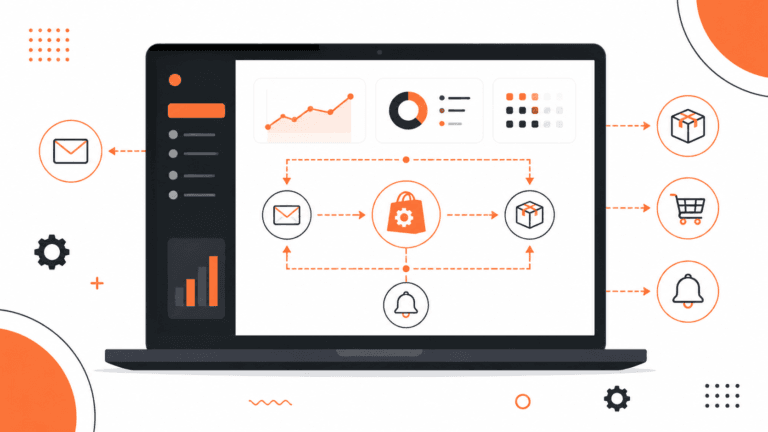
Shopify Flow AI automation is free on the Basic, Grow, Advanced, and Plus plans. Its Sidekick AI update lets you describe a workflow in plain English instead of building it field by field. If you haven’t used Flow yet, set it up before you pay for any outside automation tool.
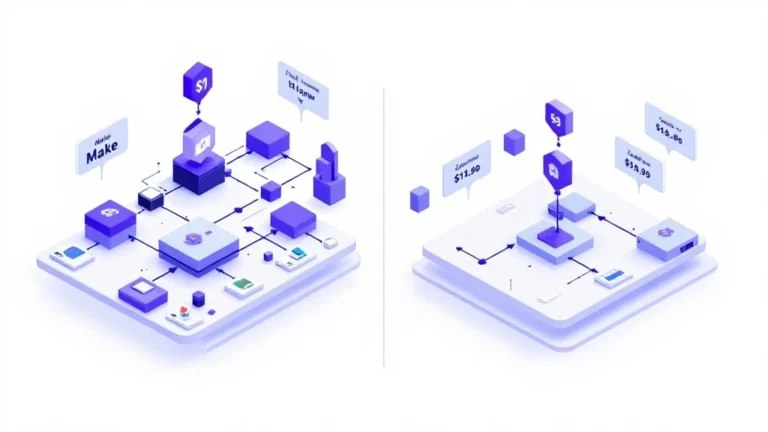
This guide is part of our complete guide to AI tools for Shopify stores. If you’ve already outgrown Flow’s internal scope, compare it against Zapier and Make for connecting to external apps.
What Is Shopify Flow (and Why It’s Free)
Shopify Flow is Shopify’s built-in, no-code automation builder. It’s a visual editor where you set a trigger, optional conditions, and one or more actions, all inside your Shopify admin. It comes free with the Basic, Grow, Advanced, and Plus plans. That sets it apart from Zapier and Make, which both need a separate paid plan.
The trade-off is reach. Flow’s actions are limited to Shopify’s own objects (orders, customers, products, inventory), plus a growing list of apps that have built Flow triggers and actions. It can’t reach the thousands of other apps Zapier connects to. For anything outside Shopify, like Slack, Google Sheets, or an outside CRM, you’ll eventually need Zapier or Make. But for automations that stay inside your store, Flow is faster to set up and costs nothing.
What You’ll Need
- Any active Shopify plan (Flow is included, no upgrade required)
- Admin access to install the Shopify Flow app from the Shopify App Store
- 20-30 minutes to set up your first 2-3 workflows
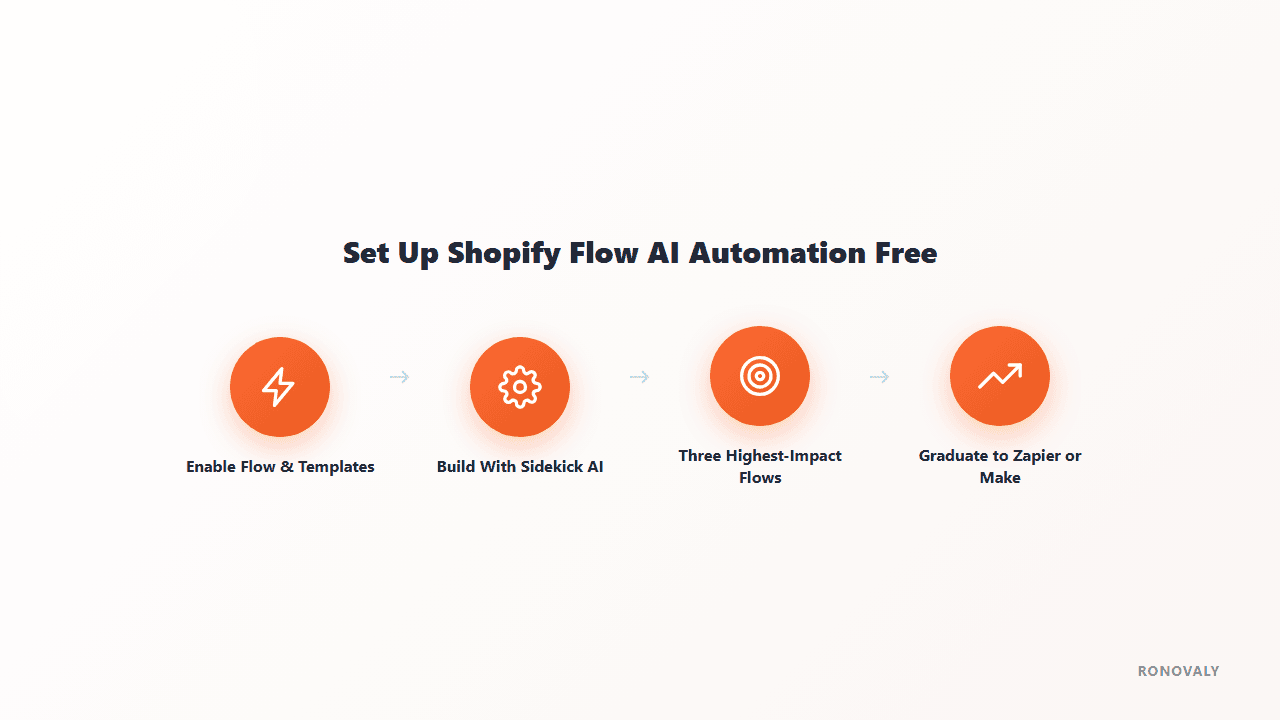
Step 1: Enable Shopify Flow and Explore the Template Library
Install Shopify Flow from the Shopify App Store — it’s a free Shopify-built app, not a third-party listing. Once installed, it appears under Apps in your admin. Open it and go straight to the official template library before building anything from scratch.
Shopify Flow has a large library of ready-made templates, sorted into categories such as buyer experience, customer management, and fulfillment. A template is a finished workflow you install with one click. Then you change the specific values (the stock threshold, who gets notified, the tag name) and turn it on. So most common automations don’t need a blank canvas at all. The library covers tasks like tagging orders based on customer behavior, alerting staff about buyer experience issues, and routing fulfillment by order location or contents. If you’re setting up automation for the first time, go through the library before you build a single custom workflow. It’s the fastest path to a working setup.
Browse by category and install anything that matches a task you do by hand today. Tagging VIP customers, flagging low stock, and routing fulfillment by location are good places to start.

Step 2: Build a Workflow with Sidekick AI
Flow now includes Sidekick AI, Shopify’s AI assistant, inside the workflow builder. You no longer have to pick a trigger, add conditions, and set up actions by hand. Describe what you want, for example “when an order is over $200, tag the customer as VIP and notify the fulfillment team.” Sidekick builds the full workflow (trigger, conditions, actions) for you to review before you turn it on.
This is similar to what Zapier’s Copilot and Make’s AI builder do for outside automations. Sidekick’s edge is that it already knows Shopify’s data, so there’s less back-and-forth about what’s available.
Illustrative example (hypothetical): say a home goods store wants to flag any order over $150 for a handwritten thank-you note. That one sentence maps to a simple Flow: trigger on order creation, a condition on order value, and an action that adds an internal tag. Describe it to Sidekick, then check each field before you turn it on.

Step 3: Set Up Your 3 Highest-Impact Flows First
Don’t try to automate every process at once. These three cover the majority of what growing Shopify stores need from Flow:
- Low stock alerts: when stock drops under a set level, email your supplier or alert your team automatically. You won’t discover a stockout after it has already cost you sales.
- VIP customer tagging: when an order passes a set value, or a customer makes a 3rd purchase, tag them for your loyalty program or a personal follow-up.
- Fulfillment routing: when an order comes in, send it to the right location or flag it for special handling based on its details. No one has to check every order by hand.
These three have the clearest, fastest payoff for a small team, which makes them the right first automations.
Step 4: When to Graduate to Zapier or Make
Flow hits its limit as soon as a workflow needs something outside Shopify: a Slack message, a Google Sheet update, or an email in a marketing platform without Flow support. That’s exactly the handoff point covered in our guides to Zapier and Make.
The dividing line is simple. Does every step stay inside Shopify’s own data (orders, customers, products, inventory), or does one step need an outside app? For internal-only automations, Flow is free and faster to set up. It needs no extra account, and Sidekick already understands Shopify’s data. But if a single step must post to Slack, write to a Google Sheet, or trigger a CRM or email platform with no Flow integration, you need an outside connector. Many growing stores run both: Flow for internal store logic, and Zapier or Make for anything that leaves Shopify.
A practical rule: build it in Flow first. If you hit a wall because the app or action you need isn’t there, add Zapier or Make for that one workflow. Don’t drop Flow for everything.

Common Mistakes to Avoid
Skipping the template library. Building from scratch when a template already fits your use case wastes time and raises the risk of a wrong condition. Search the library before you build anything new.
Setting conditions too loosely. A “tag VIP customers” flow without a clear value threshold will tag everyone, making the tag meaningless. Define the exact condition before activating, not after you notice the tag applied to 90% of customers.
Forgetting Flow can’t reach outside Shopify without a connected app. If a workflow quietly does nothing, a likely cause is expecting Flow to reach an app (like an unconnected CRM) that has no Flow action. Check the list of available app actions before you build around one.
Never reviewing running Flows after setup. Shopify Flow logs every run in its activity history. Review it monthly — thresholds that made sense at $50k/month in revenue often need adjusting as order volume grows.
Related guides: for next steps, see how to automate returns and exchanges with AI; how to audit your AI app stack for hidden costs.
FAQ
Is Shopify Flow really free?
Yes. Shopify Flow is free on the Basic, Grow, Advanced, and Plus plans. Zapier and Make both need paid plans once you pass their free tiers. That makes Flow the natural first step in any store’s automation stack.
Which Shopify plans include Shopify Flow?
Shopify Flow is a free app on the Basic, Grow, Advanced, and Plus plans, per Shopify’s help center.
Can Shopify Flow connect to OpenAI or other outside APIs?
Yes, through the Send HTTP Request action, which can call any web API, including OpenAI’s. Shopify notes this action is only available on the Grow, Advanced, and Plus plans. On Basic, use Zapier or Make for outside calls instead.
What can’t Shopify Flow do?
Flow’s actions are limited to Shopify’s own objects and apps that have built Flow integrations. It can’t connect to the wider world of outside apps (Slack, Google Sheets, most CRMs or email platforms) unless that app has added Flow support. For anything beyond that, use Zapier or Make.
Do I need coding skills to use Shopify Flow?
No. Flow’s visual builder is made for non-technical store owners. With Sidekick AI, you can often skip even the visual setup: describe the automation in plain English, then review the workflow it builds before turning it on.
How is Shopify Flow different from Zapier or Make?
Shopify Flow only automates actions inside Shopify, and it’s free. Zapier and Make connect Shopify to thousands of outside apps but need a paid plan. A common setup is Flow for internal store logic (tagging, stock alerts, fulfillment routing) and Zapier or Make for anything that must reach outside Shopify.
What are the most common Shopify Flow workflows?
Low stock alerts, VIP customer tagging based on order value or purchase count, and fulfillment routing based on order location or contents. These three cover a lot of what a growing store needs before it moves on to cross-app workflows.
Key Takeaways
- Shopify Flow AI automation is free on every plan — set it up before paying for Zapier or Make.
- Sidekick AI (2026) lets you describe a workflow in plain English instead of manually configuring triggers and actions.
- Start with the 3 highest-impact flows: low stock alerts, VIP tagging, and fulfillment routing.
- Flow’s limit is anything that must leave Shopify. That’s the signal to add an outside tool, not to replace Flow.
- Most stores run Flow and an external automation tool side by side, not one instead of the other.
For the full stack comparison, see our guides to automating Shopify with Zapier and Make. For the full picture, revisit the complete guide to AI tools for Shopify stores.
This post contains affiliate links. If you make a purchase through these links, we may earn a commission at no extra cost to you.