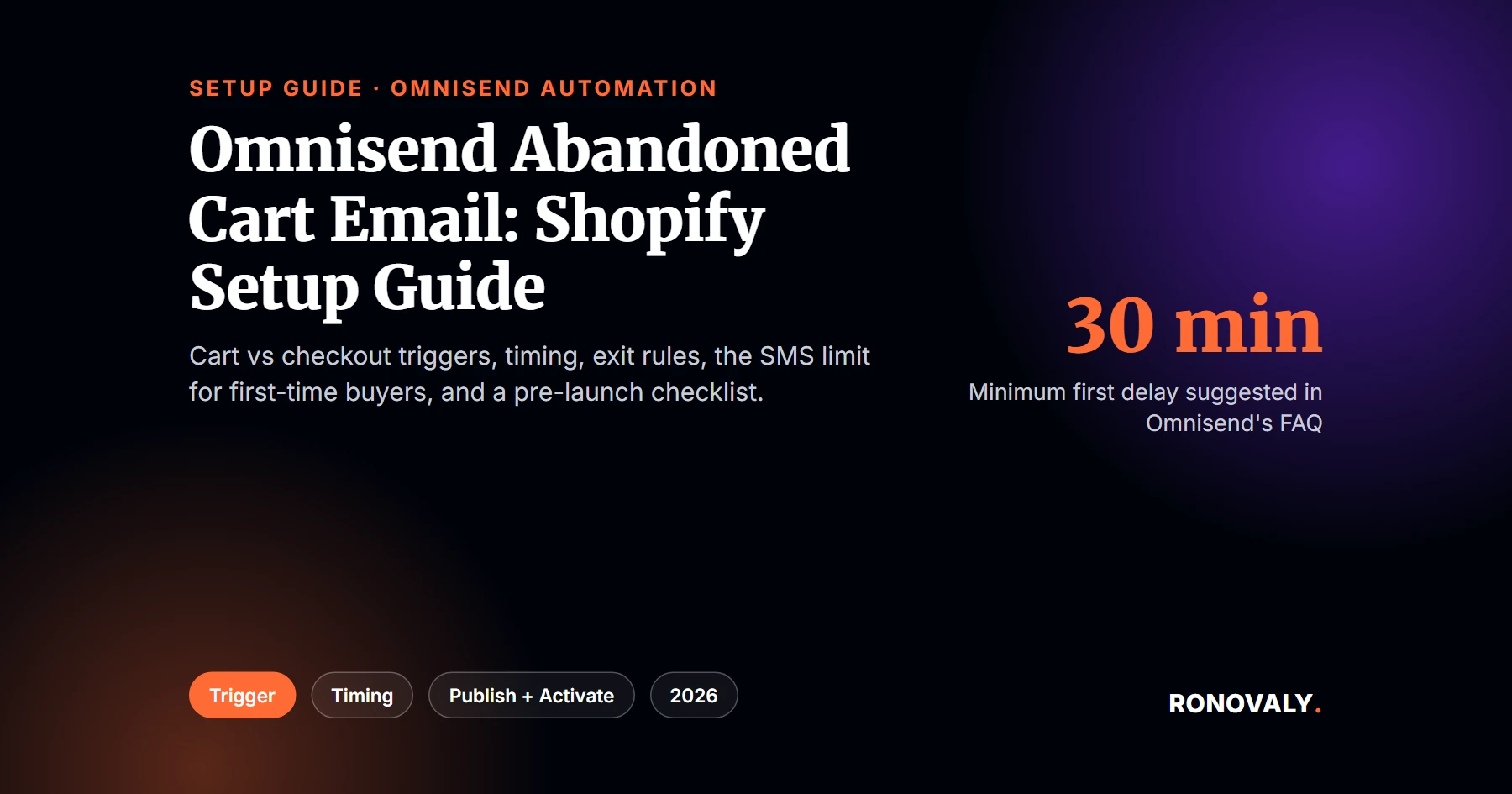
Omnisend Abandoned Cart Email: Shopify Setup Guide (2026)
An Omnisend abandoned cart email is an automated message that Omnisend sends when a shopper adds products to the cart but doesn’t start checkout. Specifically, you set it up in Omnisend under Automation, from a ready-made preset, then publish and activate it. However, two details decide whether it works: you must turn off your store’s own cart email, and you need the right trigger, cart or checkout.
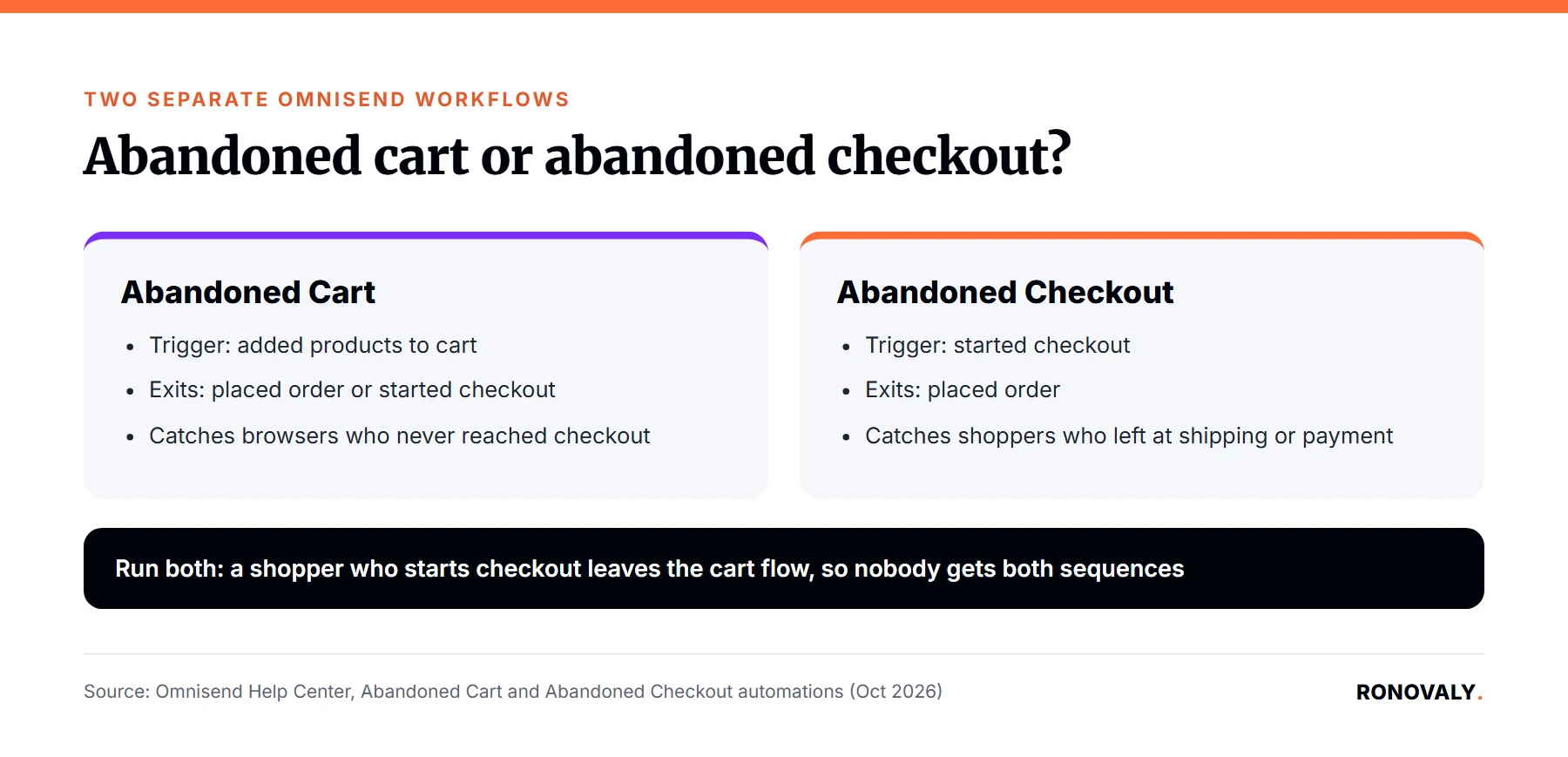
An abandoned cart means items were added but checkout never started. An abandoned checkout means checkout started but no order was placed. Consequently, Omnisend treats them as two separate workflows.
I built this guide from Omnisend’s help center articles on automation setup and on abandoned cart and checkout flows, checked on October 18, 2026. I haven’t run this flow on a store. Accordingly, every step and setting below comes from Omnisend’s own documentation.
Key Takeaways
- Omnisend has separate Abandoned Cart and Abandoned Checkout workflows, and a contact who starts checkout leaves the cart flow.
- Turn off your store’s own cart abandonment email first, because Omnisend doesn’t disable it for you.
- A workflow only sends after you click both Publish Changes and Activate Workflow.
- By default, each contact can trigger a cart or checkout flow only once every 24 hours.
- First-time abandoned carts can only get email, not SMS, because phone numbers sync after a first order.
Abandoned Cart or Abandoned Checkout: Which Do You Need?
Most Shopify stores need both, because they catch different shoppers. In fact, each one covers a gap the other leaves open. According to Omnisend’s help article on abandoned cart and abandoned checkout automations, the two flows use different triggers and exits:
| Workflow | Trigger | Exits when | Catches |
|---|---|---|---|
| Abandoned Cart | Added products to cart | Placed order or started checkout | Browsers who never reached checkout |
| Abandoned Checkout | Started checkout | Placed order | Shoppers who left at shipping or payment |
In other words, a shopper moves from the cart flow into the checkout flow as soon as checkout starts. As a result, nobody gets both sequences for the same visit. Additionally, Omnisend’s checkout presets include one with three emails and one with three emails plus one SMS.
Before You Start: 3 Things to Check
Get these right first; otherwise, the flow can misfire. Each one comes from Omnisend’s documentation:
- Turn off your store’s own cart email. Omnisend’s help article says enabling its flow “does not automatically disable your store platform’s flow” (Omnisend Help Center). I found the setting in Shopify’s Help Center: go to Apps, then Messaging, then Automations, and open the settings of “Abandoned checkout emails by Shopify.” Then turn off “Send abandoned checkout emails automatically,” or shoppers get two reminders.
- Confirm Omnisend is connected to Shopify. Importantly, the flow relies on cart and checkout events from your store.
- Decide on a discount policy. For example, Omnisend’s Value Split preset sends discount emails only to higher-value carts, so you aren’t training every shopper to wait for a code.
How to Set Up an Omnisend Abandoned Cart Email
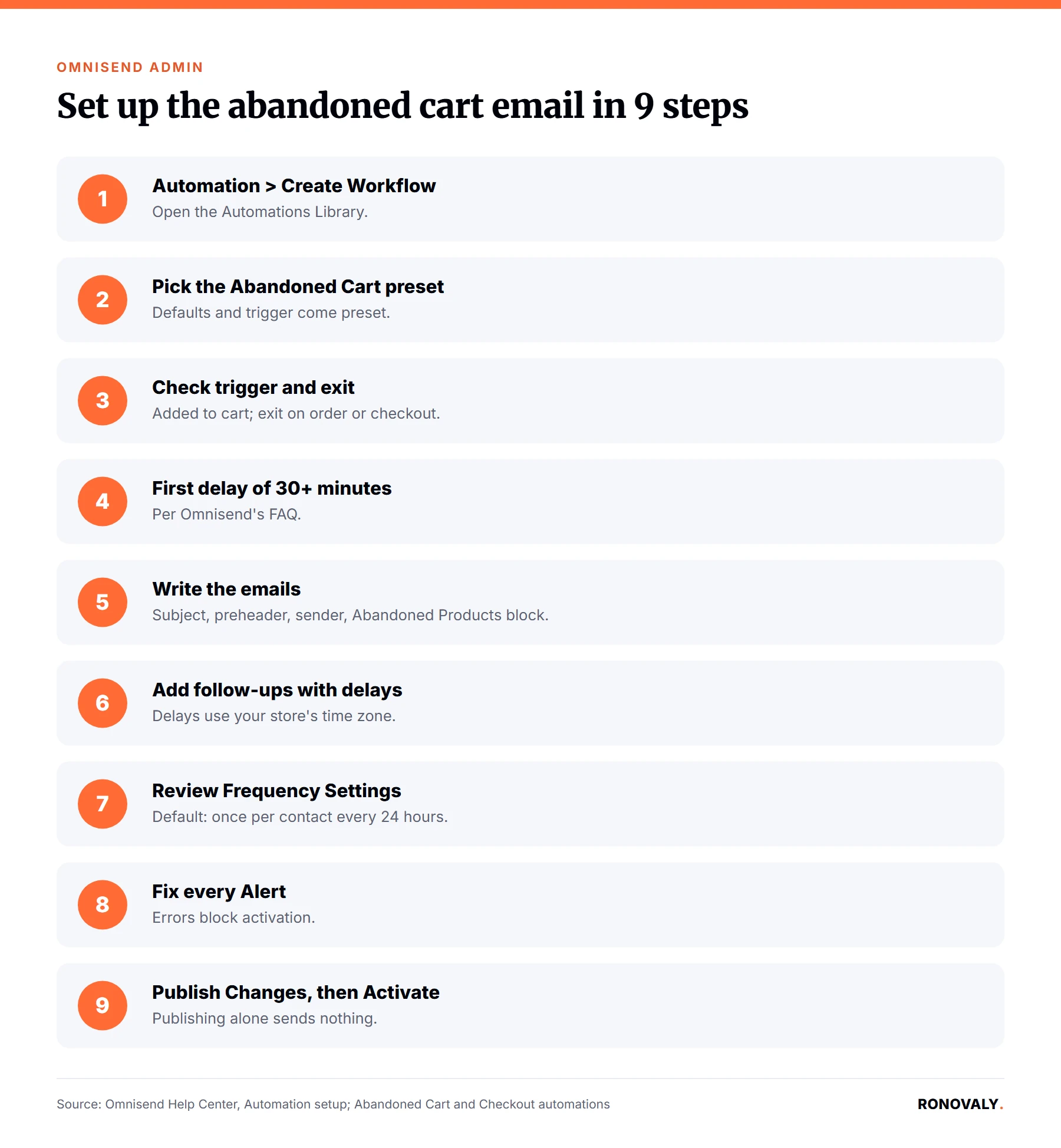
Similarly, the setup follows Omnisend’s automation setup guide. Here are the steps in order:
- Open Automation. Go to Automation in the top menu, then click Create Workflow.
- Pick the preset. Choose the Abandoned Cart workflow from the Automations Library. Presets come with recommended defaults and a preset trigger.
- Check the trigger. The trigger should be “Added products to cart,” with “Placed order or started checkout” as the exit.
- Set the first delay. Omnisend’s FAQ suggests waiting “at least 30 minutes before your first message” if you worry about emailing people who already bought.
- Write the emails. Fill in the subject line, preheader, sender name and sender email. Use the Abandoned Products block so the email shows the actual items.
- Add later messages. Add a delay block before each follow-up. Delays count from the end of the previous block and use your store’s time zone.
- Review frequency. Open Frequency Settings to control how often one contact can re-enter.
- Check Alerts. Fix every error shown under Alerts at the top right. Recommendations are optional.
- Publish, then activate. Click Publish Changes, then Activate Workflow.
Notably, step 9 trips people up. Omnisend warns that publishing without activating keeps the workflow disabled. It also says activating without publishing runs the old version.
How Many Emails, and When?
Omnisend’s documentation doesn’t fix a single schedule, so treat timing as something to test. That said, the documented rules set useful limits. The first message should wait at least 30 minutes, per Omnisend’s FAQ. In addition, a common pattern is three emails: a reminder, a follow-up and a final message, which matches the three-email structure of Omnisend’s checkout presets.
From my research, here’s how I’d frame the decision. Your first email exists to remind, so it shows the products and a clear button back to the cart. The second can answer doubts, for instance about shipping costs or returns. Finally, the third is where a discount belongs, if you use one at all, and only for carts where the margin allows it. Meanwhile, keep exit conditions on, so anyone who orders stops getting reminders immediately. This keeps the sequence helpful rather than pushy, and it protects your margin on shoppers who would have bought anyway. Above all, change one thing at a time, such as the first delay, so you can tell what moved your results.
Why Is My Omnisend Abandoned Cart Email Not Sending?
Usually it’s one of four documented settings. Specifically, check them in this order:
- Not activated. The workflow must be published and set to Active. A published but inactive flow sends nothing.
- Frequency limit. By default, “each contact can trigger an Abandoned Cart or Checkout automation only once every 24 hours” (Omnisend Help Center). So repeat tests with the same email address won’t fire.
- Audience filters. Omnisend checks audience filters only at entry, after a wait of about 15 seconds. Therefore, use trigger filters instead when a segment might not update in time.
- No recent events. If the Trigger Preview tool shows “No Matching Contacts,” that only means nobody triggered the event recently.
For example, to test properly, use different email addresses or change the frequency setting while testing.
Can Omnisend Send Abandoned Cart SMS?
Yes, but not to first-time shoppers. Omnisend’s help article says first-time abandoned carts can only send email, not SMS, because phone numbers sync only after a customer’s first order. Consequently, SMS cart recovery reaches returning customers only.
Hence, this matters for your budget. For instance, if most of your carts come from new visitors, email will do most of the recovery work. For SMS costs, see our breakdown of Omnisend pricing, which lists the US rate per message.
Is Omnisend Good for Abandoned Cart Recovery?
For core cart recovery, yes. Omnisend’s 2026 Ecommerce Marketing Report found that abandoned cart and welcome messages drove 76% of automation-generated orders across its users in 2025. That’s Omnisend’s own data, so read it as a sign that these flows matter, not as a promise for your store.
Alternatively, if you’re still choosing a platform, compare it with Klaviyo in our Omnisend vs Klaviyo cost comparison. In addition, for more ways to win back carts, see our guide to reducing cart abandonment on Shopify with AI.
Pre-Launch Checklist
Run through this before you activate the flow:
- Shopify’s own abandoned checkout email is switched off (Apps, Messaging, Automations).
- The trigger is “Added products to cart” and the exit includes “Placed order.”
- The first delay is at least 30 minutes.
- Every email has a subject line, preheader, sender name and sender email.
- The Abandoned Products block shows the cart items.
- Alerts show no errors.
- You clicked Publish Changes, then Activate Workflow.
- You tested with a fresh email address.
Frequently Asked Questions
How do I set up an abandoned cart email in Omnisend?
Go to Automation, click Create Workflow and pick the Abandoned Cart preset. Check that the trigger is “Added products to cart,” set a first delay of at least 30 minutes and write your emails. Then fix any Alerts, click Publish Changes and click Activate Workflow.
What is the difference between abandoned cart and abandoned checkout in Omnisend?
Abandoned Cart starts when a shopper adds products but doesn’t start checkout. Abandoned Checkout starts when a shopper begins checkout but doesn’t order. Notably, a contact who starts checkout leaves the cart flow and only gets the checkout messages.
Why isn’t my Omnisend abandoned cart email sending?
Check four things. The workflow must be both published and active. The default frequency allows one trigger per contact every 24 hours. Audience filters are checked only at entry. And the trigger preview shows no contacts when nobody has triggered the event recently.
Do I need to turn off Shopify’s abandoned checkout email?
Yes. Omnisend’s help center says enabling its flow does not automatically disable your store platform’s flow. As a result, if you leave both on, shoppers can get two reminders for the same cart.
Can Omnisend send abandoned cart texts to new customers?
No. Omnisend syncs phone numbers only after a customer’s first order, so first-time abandoned carts can only get email. Nevertheless, SMS recovery works for returning customers.
Bottom Line
Setting up an Omnisend abandoned cart email takes a preset, a trigger check and two clicks to go live. The traps are all documented: a duplicate Shopify email, a flow that’s published but not active, the 24-hour frequency rule and no SMS for first-time carts. Therefore, fix those, then test one change at a time.
About the Author
Alex Carter covers AI and automation for Ronovaly, focusing on workflows that save Shopify founders time without new risk. Alex Carter is a pen name of the Ronovaly editorial team. Every step in this guide comes from Omnisend’s help center, checked on October 18, 2026.
Sources
- Omnisend Help Center, Abandoned Cart and Abandoned Checkout automations (checked 2026-10-18): https://support.omnisend.com/en/articles/6659889-abandoned-cart-and-abandoned-checkout-automations
- Omnisend Help Center, Automation setup (checked 2026-10-18): https://support.omnisend.com/en/articles/3954813-automation-setup
- Omnisend, 2026 Ecommerce Marketing Report (2025 data): https://www.omnisend.com/2026-ecommerce-marketing-report
- Shopify Help Center, Abandoned checkouts (checked 2026-10-18): https://help.shopify.com/en/manual/orders/abandoned-checkouts
This post contains affiliate links. If you make a purchase through these links, we may earn a commission at no extra cost to you.