How to Speed Up Your Shopify Store: 7 Proven Fixes (2026)
Last updated: June 2026
Google and Deloitte measured a 0.1-second improvement in mobile load time and found it increased retail conversion rates by 8.4%. A full second of delay costs 7% in conversions. On a Shopify store doing $50,000/month, 2 extra seconds of load time represents roughly $7,000 in monthly revenue left on the table — every month.
The good news: most Shopify stores carry 2–4 seconds of fixable slowness. The 7 fixes below address the most common causes, in order of impact-to-effort ratio. None require a developer.
Speed also works as a conversion lever: a faster store makes every other conversion change count for more.
How to audit your Shopify store speed first
Google PageSpeed Insights: what to read
Run your homepage and your top product page through Google PageSpeed Insights. Focus on the mobile tab — 67% of Shopify traffic is mobile. Three numbers matter:
For mobile-specific fixes beyond this checklist, see how to speed up your Shopify store on mobile.
- Largest Contentful Paint (LCP) — time until the main content is visible. Target: under 2.5 seconds.
- Total Blocking Time (TBT) — JavaScript blocking the main thread. Target: under 200ms.
- Cumulative Layout Shift (CLS) — elements jumping around as the page loads. Target: under 0.1.
PageSpeed also gives you a prioritized list of “Opportunities” — these are your fixes, ranked by estimated time savings. Work through them top to bottom.
Shopify’s built-in speed score
Shopify admin → Online Store → Themes shows a speed score (0–100) for your theme. This score uses Google Lighthouse data sampled across real visitors. Anything below 50 is a problem. Above 70 is good. The score updates once per day — use it to track improvement after changes, not for diagnosis.
This score isn’t the same test as Google PageSpeed Insights above — see our full breakdown of what the Shopify speed score actually measures if the two numbers on your dashboard don’t match.
Fix 1 — Optimize your images
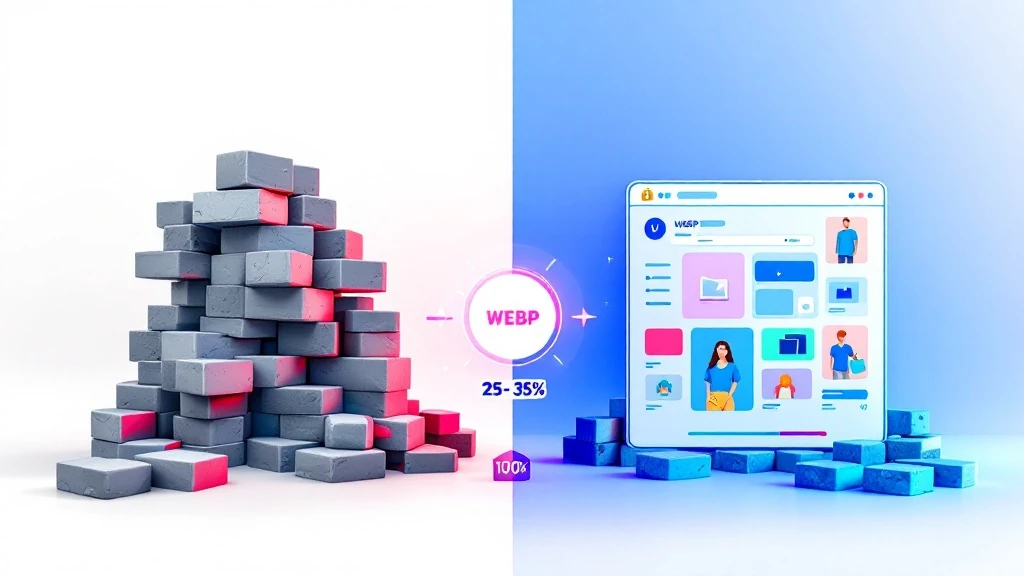
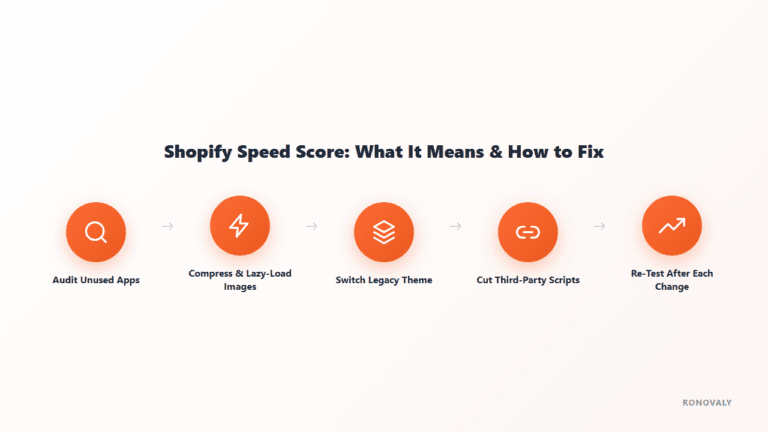
Images typically account for 40–60% of a Shopify page’s total weight. This is almost always the highest-impact fix — and the easiest to implement without touching code.
Convert to WebP format
WebP images are 25–35% smaller than JPEG and 50–60% smaller than PNG, with no visible quality difference. Shopify’s CDN automatically serves WebP to browsers that support it — but only if you upload WebP files. Re-export your product and banner images in WebP before uploading.
Free tools: Squoosh (browser-based, batch export), TinyPNG (drag-and-drop, supports WebP). For stores with 500+ images, the Shopify app Crush.pics compresses your existing library automatically.
Set correct image dimensions
Uploading a 4000×4000px image for a 600×600px product thumbnail forces the browser to download 4× more data than needed. Match your upload dimensions to your theme’s actual display size. Check your theme documentation for the recommended product image dimensions — most themes use 800×800px to 1200×1200px.
Fix 2 — Remove unused apps
Every Shopify app you install — active or not — injects JavaScript and CSS into every page of your store. A store with 15 installed apps often carries 6–8 apps’ worth of dead code loading on every pageview. This is the most overlooked speed killer in Shopify stores.
Go to Shopify admin → Apps. For each app: when did you last use it? Is it actively generating revenue? If the answer is “I’m not sure” — uninstall it. The revenue from the apps you keep won’t be affected; the speed improvement starts immediately.
After uninstalling, some apps leave behind code snippets in your theme files. Check Shopify admin → Online Store → Themes → Edit code and search for references to uninstalled app names. Remove leftover <script> and <link> tags.
For a step-by-step app cleanup, including the leftover code most guides miss, see our guide to removing unused Shopify apps.
Fix 3 — Switch to a performance-optimized theme
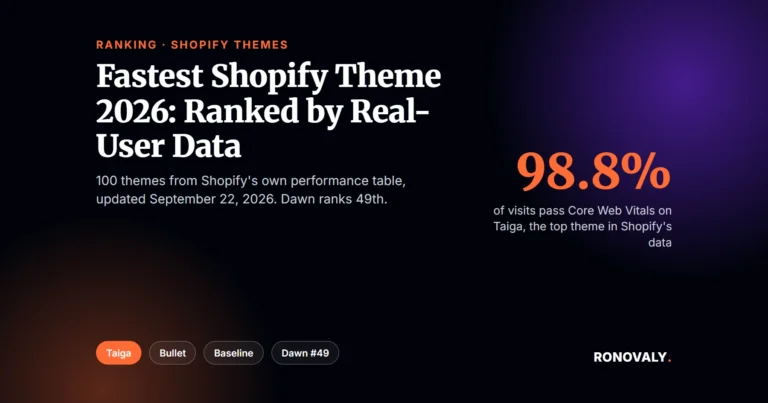
Theme choice sets your speed floor. In Shopify’s theme performance data (updated September 22, 2026), the share of visits passing all three Core Web Vitals ranges from 98.8% on the top theme, Taiga, to a median of about 89% across the 100 themes listed.
Not sure which theme to pick? See our full comparison of the fastest Shopify themes in 2026 — ranked by Shopify’s own real-user Core Web Vitals data.
If your pages still fail Core Web Vitals after you’ve optimized images and removed unused apps, look at your theme next. Dawn, Shopify’s free default, passes at 89.1% and ranks 49th of 100, right at the median, so it is a safe baseline rather than the fastest option. Shopify-built free themes such as Craft (93.8%) and Studio (93.6%) rank higher.
Whatever you pick, avoid heavy animation libraries, parallax scrolling, and autoplay video in the hero section, since each adds work the browser must finish before the page is usable.
Fix 4 — Enable lazy loading for below-fold images
Lazy loading delays image loading until the visitor scrolls close to that image. Without it, your browser downloads every image on the page — including ones 5 scrolls below the fold — before showing you anything. On image-heavy product pages, that adds a lot of weight before the first screen appears.
Most modern Shopify themes (Dawn, Sense, and any theme built after 2022) have lazy loading enabled by default. To verify: view your page source and check that your below-fold images have loading="lazy" on their <img> tags. If they don’t, add it manually in your theme’s image snippets.
Fix 5 — Fix render-blocking resources
What render-blocking means

A render-blocking resource is a script or stylesheet that the browser must fully download and process before it can display anything on screen. Every render-blocking resource delays the moment your visitor sees your page. PageSpeed Insights flags these under “Eliminate render-blocking resources.”
The most common culprits in Shopify stores
- Third-party chat widgets — Intercom, Drift, Zendesk Chat. These load large JavaScript bundles synchronously. Fix: load them with a 3–5 second delay after page render, or switch to a lighter alternative.
- Google Fonts loaded via @import — Replace CSS
@importcalls with<link rel="preconnect">and<link rel="stylesheet">in your theme’s<head>. This parallelizes font loading instead of serializing it. - Multiple tracking pixels — Facebook Pixel, Google Analytics, TikTok Pixel, Pinterest Tag. Each adds 50–200ms when loaded naively. Use Google Tag Manager to load all pixels through a single async container.
- Review app widgets — Stamped, Okendo, and Loox load full widget libraries on every product page. Check if your review app offers a “lightweight” or “async” loading option in its settings.
Fix 6 — Verify your CDN setup and browser caching
Shopify includes a global CDN (powered by Fastly) for all stores — your images, CSS, and JavaScript are automatically served from the server closest to each visitor. You don’t need to configure this, but you do need to make sure you’re not working against it.
Two things that undermine Shopify’s CDN: hosting product images externally (always upload directly to Shopify), and loading third-party scripts from slow external servers. Run PageSpeed Insights and check “Serve static assets with an efficient cache policy” — any resources flagged here are not benefiting from Shopify’s CDN.
Fix 7 — Reduce JavaScript execution time
Defer non-critical scripts

Scripts that don’t need to run immediately — analytics, review widgets, chat launchers — should be deferred or async-loaded. In your theme’s <head>, replace <script src="..."> with <script defer src="..."> for non-critical scripts. This tells the browser to download them in the background and execute them after the page has rendered.
Audit your theme’s JavaScript
Open Chrome DevTools → Performance tab → record a page load. Look for long JavaScript tasks (shown as red bars in the main thread). Tasks over 50ms are “long tasks” that block rendering. If your theme has several of these, contact the theme developer — this is a theme quality issue, and reputable theme developers provide updates that address Core Web Vitals performance.
What to expect after each fix
No reliable source gives a fixed number of PageSpeed points per fix. The gain depends on your theme, your apps, and your images, and lab scores move between runs even when nothing changes. Lighthouse builds its performance score from weighted metrics, with Total Blocking Time at 30% and Largest Contentful Paint and Cumulative Layout Shift at 25% each, according to Chrome for Developers. So fixes that cut script work and speed up your main image tend to move the score most.
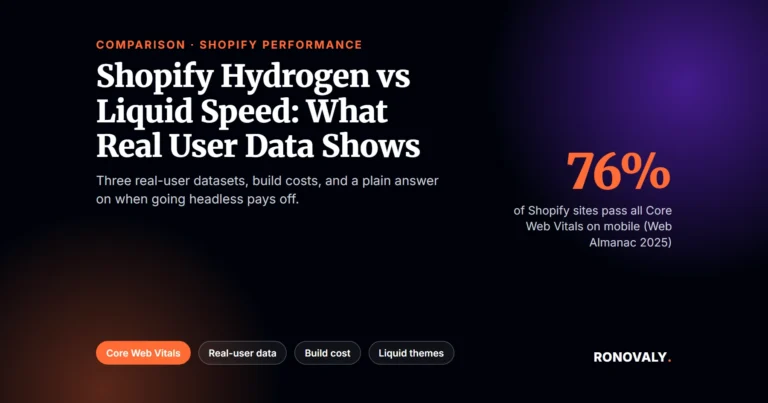
Real-user data is the better yardstick. According to the HTTP Archive Web Almanac 2025, 76% of Shopify sites pass all three Core Web Vitals on mobile, and LCP is the one they miss most often. To track your own progress, run PageSpeed Insights three times before and after each fix and keep the median. Then check the field data in Search Console after 28 days.
The most important number isn’t your PageSpeed score — it’s your LCP. Keep it under 2.5 seconds on mobile and you’ve met Google’s “good” threshold for Core Web Vitals. Everything above targets that number directly.
For a phone-first order of fixes built on that real-user data, see our guide to speeding up a Shopify store on mobile.
Speed improvement checklist
| Fix | Effort | Impact on LCP |
|---|---|---|
| Convert images to WebP + resize | 1–2h | High |
| Remove unused apps | 30min | High |
| Switch to a faster theme | 4–8h | Very High |
| Enable lazy loading | 30min | Medium |
| Fix render-blocking resources | 1–2h | Medium |
| Verify CDN / remove external assets | 30min | Low–Medium |
| Defer non-critical JavaScript | 1h | Medium |
Work through this list in order. Most stores recover 1.5–2.5 seconds of load time from fixes 1–3 alone. The full list typically brings a 3–4 second mobile load time down to under 1.5 seconds.
Frequently asked questions
What is a good Shopify speed score?
Shopify’s built-in speed score: 70+ is good, 80+ is excellent. Google PageSpeed Insights mobile: 50+ is acceptable, 70+ is good. Most stores start at 30–50 on PageSpeed mobile. After applying the fixes above, 60–75 is a realistic target without a developer. Above 80 usually requires theme-level optimization work.
Does Shopify page speed affect Google rankings?
Yes — Core Web Vitals (LCP, CLS, FID/INP) are confirmed Google ranking signals since 2021. A store with poor Core Web Vitals scores ranks lower than a comparable store with strong scores, all else being equal. Speed optimization is both a conversion and an SEO play.
How much does Shopify speed affect conversions?
Google and Deloitte data: a 0.1-second improvement in mobile load time increases retail CVR by 8.4%. Portent research: a 1-second load time converts 3× better than a 5-second load time. The impact is non-linear — every second removed from a slow baseline delivers more improvement than removing a second from an already-fast baseline.
Do I need a developer to speed up my Shopify store?
Not for fixes 1–4. Image optimization, app removal, theme switching, and lazy loading are all doable without code. Fix 5 (render-blocking resources) and Fix 7 (deferred scripts) require basic comfort with your theme’s code editor — intermediate level. Fix 6 (CDN audit) is review-only unless you need to move externally-hosted assets.
Next steps
Speed is the foundation — but it only converts visitors who are already motivated to buy. To maximize what you earn from a fast store, the other four CRO levers work in concert: optimized product pages, frictionless checkout, AI-powered personalization, and cart abandonment recovery. For the cart recovery side, see how to reduce cart abandonment on Shopify with AI.
Speed optimization also multiplies the value of your automation stack. When your store loads fast and your workflows are automated, you stop losing buyers to friction and start compounding growth. Automating your Shopify store with AI covers the operational layer that makes all of this scale. And if you’re preparing for higher traffic volumes, 10 Shopify automations to set up before scaling gives you the checklist to run through before you increase ad spend.
This post contains affiliate links. If you make a purchase through these links, we may earn a commission at no extra cost to you.