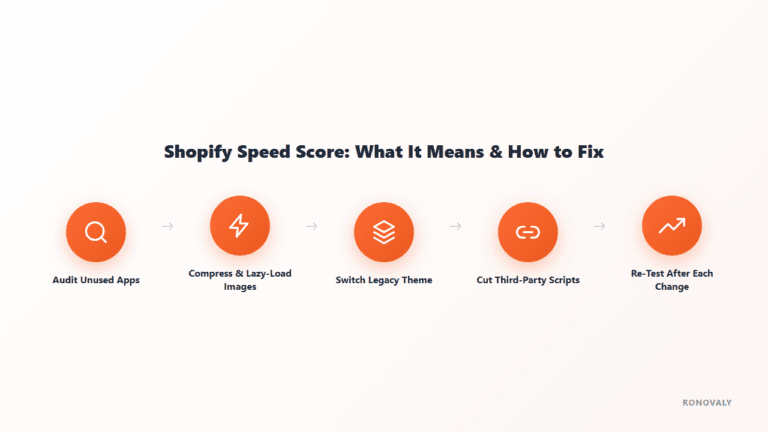
Remove Unused Shopify Apps: A 3-Step Speed Cleanup
To remove unused Shopify apps properly, uninstalling isn’t enough. According to Shopify’s Help Center, “some apps add code to your online store theme that isn’t automatically removed when you uninstall the app.” So a real cleanup has three parts: find the apps you don’t use, confirm they earn nothing, and remove the code they leave behind. Then measure the result with real-user data, not a single lab score.
App embeds are app-provided elements that float over your theme or add code to your store without being visible, such as a chat bubble or a tracking script, per Shopify’s guide to theme apps. They’re one of the first places leftover app code shows up.
Editorial note: an earlier version of this post was written as a first-person case study of a specific store. We couldn’t verify that case, so on September 28, 2026 we rewrote it as a practical guide built on Shopify’s own documentation.
Key Takeaways
- Some apps leave code in your theme after you uninstall them, per Shopify’s Help Center, so uninstalling alone may not recover any speed.
- Audit apps in three steps: activity in the last 90 days, a job you can name or revenue you can attribute, then leftover code.
- Check app embeds in Online Store, then Edit theme, then App embeds, and turn off anything from an app you’ve removed.
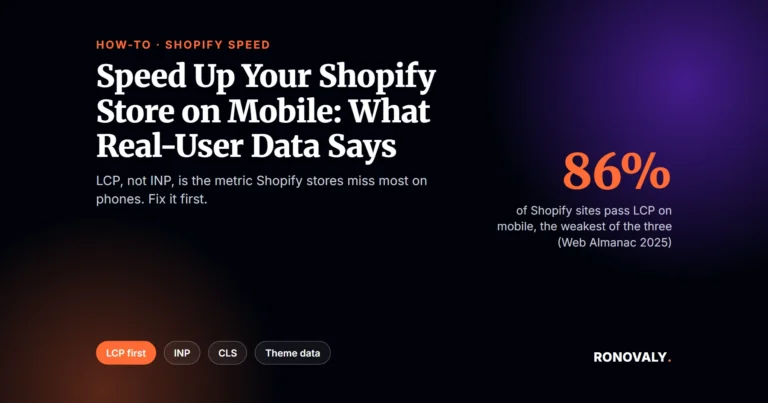
- On Shopify mobile, 86% of sites pass LCP and 90% pass INP, per the Web Almanac 2025, so heavy scripts and images are worth cutting first.
- Measure before and after with Search Console’s Core Web Vitals report over 28 days, not one PageSpeed run.
Why Unused Apps Slow a Shopify Store
Apps often load scripts on pages whether or not you still use them. As a result, a store that installed apps for old campaigns, tests, or migrations can carry code nobody benefits from. Real-user data shows where that hurts: on mobile, 86% of Shopify sites have good Largest Contentful Paint and 90% have good Interaction to Next Paint, according to the HTTP Archive Web Almanac 2025. In other words, loading and responsiveness are the metrics most likely to fail on phones, and extra scripts affect both. From my research, the part most guides skip is the leftover code: Shopify’s own Help Center says some apps leave code in your theme after you uninstall them. That means a cleanup that stops at the Uninstall button can remove the subscription and still keep the scripts. So the three steps below end with a code check, not the uninstall.
For the full picture of which mobile metric Shopify stores miss most, see our guide to speeding up a Shopify store on mobile.
Step 1: List Every App and Its Recent Activity
Start with a complete list. Go to Settings, then Apps, and write down every installed app. For each one, note when anyone last opened its dashboard and whether it produced anything in the last 90 days: orders, emails, reviews, conversions, or tickets. For example, a countdown timer from a campaign that ended months ago, or a popup tool that duplicates your email platform, usually shows no recent activity at all.
Anything with no activity and no planned use goes straight onto the removal list.
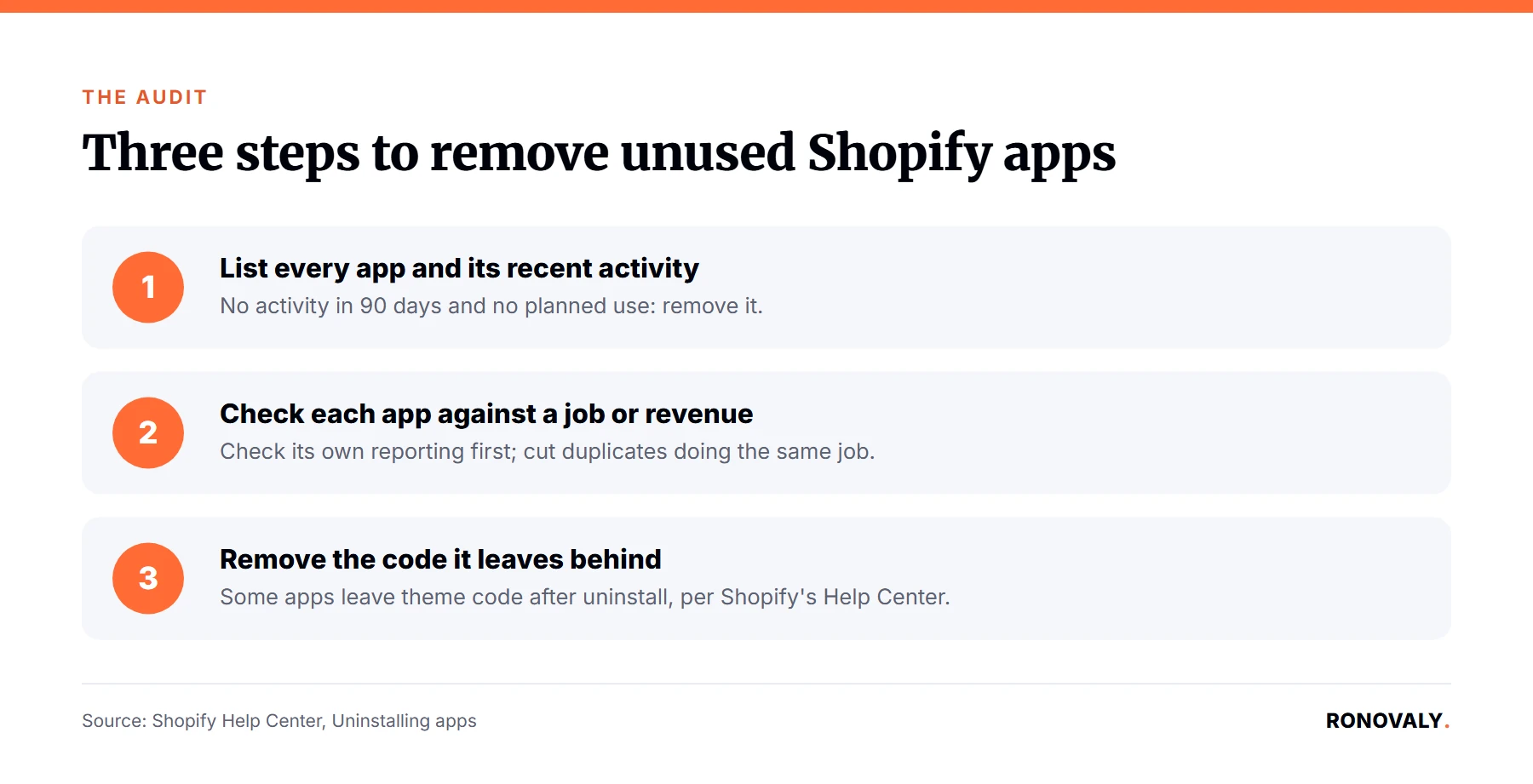
Step 2: Check Each App Against a Job or Revenue
For every app that’s still active, ask one question: can you name the job it does, or the revenue it’s responsible for? Apps with a sales function, such as upsells, cart recovery, or reviews, usually report their own results, so check that dashboard before deciding. However, if the honest answer is “I’m not sure,” that’s a sign the app has outlived its purpose.
Be careful with overlap too. Two apps doing the same job, such as two reviews apps after a migration, double the scripts for one result. Our guide to auditing your Shopify AI app stack covers the cost side of the same review.
Step 3: Remove Unused Shopify Apps and the Code They Leave Behind
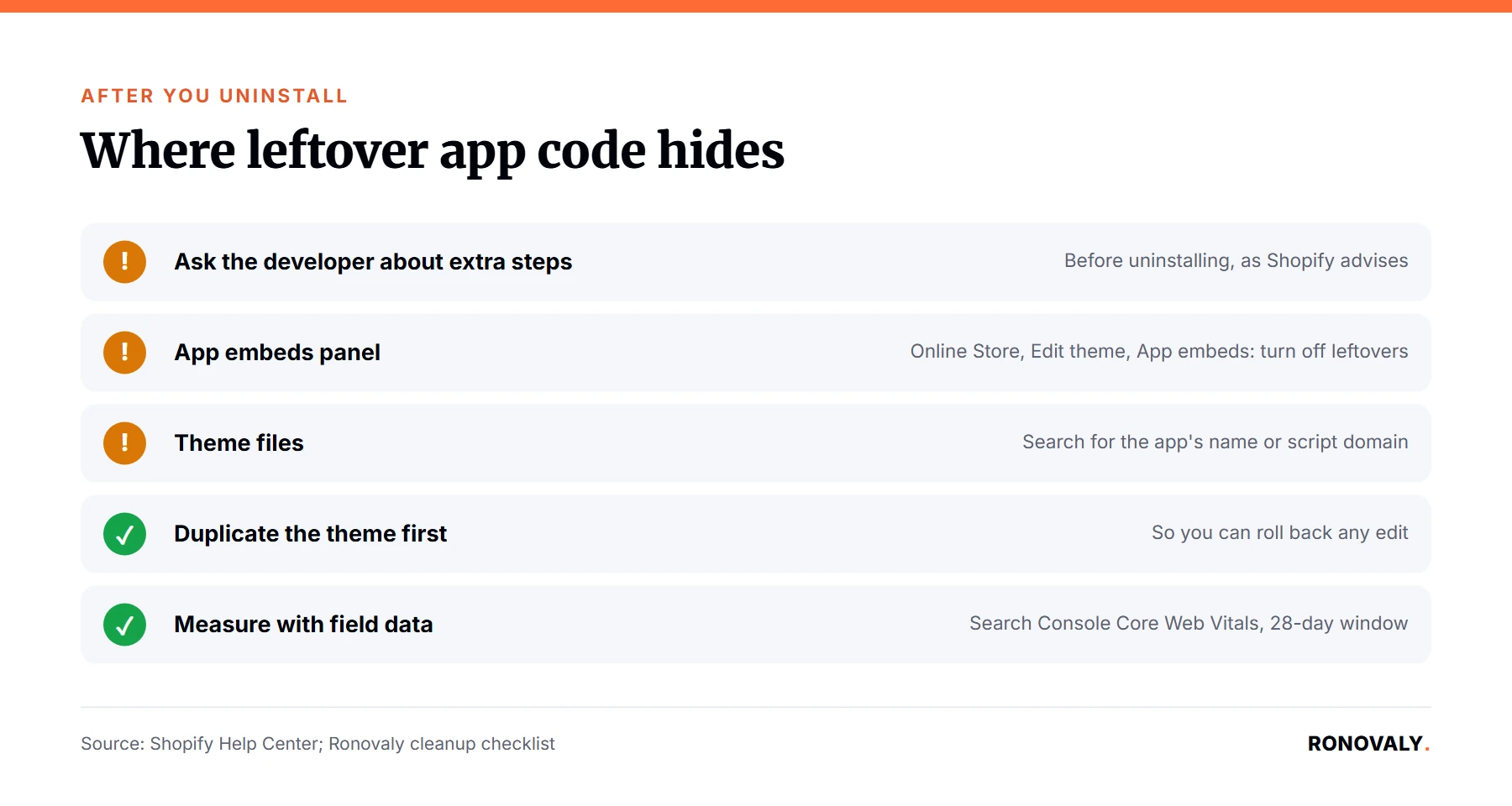
I found Shopify’s advice here is simple and easy to miss. Before you uninstall, check the app’s listing or ask the developer whether extra removal steps are needed, as Shopify advises. Then uninstall from Settings, then Apps, using the app’s menu. After that, check two places:
- App embeds. In Online Store, choose Edit theme, then open the App embeds panel and turn off anything from an app you’ve removed. Save.
- Theme code. If an app edited your theme files directly, search your theme code for the app’s name or script domain, and remove leftover snippets. Duplicate your theme first so you can roll back.
If you’re not comfortable editing theme code, the app developer or a Shopify Partner can confirm what the app added.
How to Measure the Speed Gain
Measure with field data. Before the cleanup, note your mobile results in Google Search Console’s Core Web Vitals report and run PageSpeed Insights on your top product page. Then, after removing apps, wait for the report to reflect a new 28-day window before comparing. A single lab run can swing between tests, so treat it as a quick check, not the result.
If speed barely moves, the theme may be the bottleneck instead. Shopify’s own data shows Core Web Vitals pass rates ranging from 37.8% to 98.8% across themes, as covered in our fastest Shopify themes ranking.
Common Mistakes to Avoid
- Uninstalling without checking app embeds. Leftover embeds can keep loading code after the app is gone.
- Removing revenue apps blind. Check an upsell or cart recovery app’s own reporting before cutting it.
- Editing theme code without a backup. Duplicate the theme first.
- Cleaning up once. Apps accumulate again, so repeat the three steps every quarter.
Frequently Asked Questions
Does uninstalling a Shopify app remove its code from my theme?
Not always. Shopify’s Help Center states that some apps add code to your theme that isn’t automatically removed when you uninstall them. Check the app’s listing or ask the developer about extra steps, then turn off leftover app embeds in the theme editor and search your theme code for remaining snippets.
How do I find app embeds in Shopify?
In your Shopify admin, go to Online Store, choose Edit theme, and open the App embeds panel in the theme editor sidebar. Each embed has a toggle. Turn off embeds from apps you’ve removed or no longer use, then save the theme.
How many apps should a Shopify store have?
There’s no fixed number. The better test is whether each app has a job you can name or revenue you can attribute, and whether any two apps do the same thing. An app with no activity in 90 days and no planned use is a strong removal candidate.
How do I know if removing apps improved my speed?
Compare field data, not one lab score. Note your mobile results in Search Console’s Core Web Vitals report before the cleanup, then compare after a new 28-day window. PageSpeed Insights runs are useful spot checks but vary from test to test.
Is it safe to delete theme code left by an app?
It’s safe if you duplicate your theme first and only remove code clearly tied to the uninstalled app, such as its script domain or snippet name. If you’re unsure, ask the app’s developer or a Shopify Partner to confirm what the app added before deleting it.
Next Steps
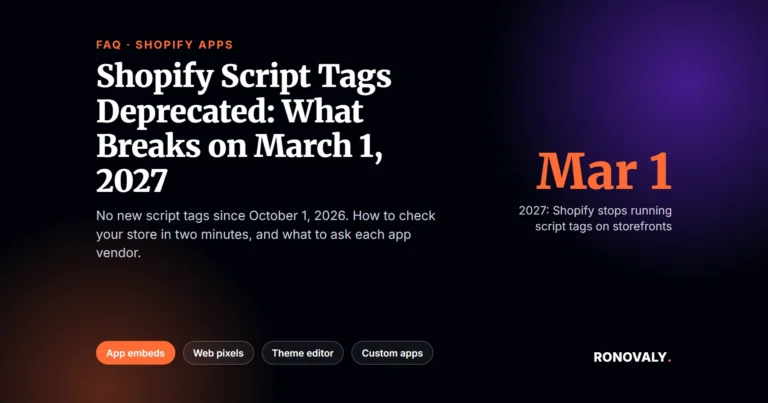
Block 30 minutes this week. List your apps, mark any with no activity in 90 days, and check the App embeds panel for apps you’ve already removed. While you’re there, check which apps still rely on script tags, which stop running on March 1, 2027: see Shopify script tags deprecated. Record your Search Console mobile results today so you have a baseline to compare against next month.
About the Author
Alex Carter covers AI, automation, and Shopify performance for Ronovaly, focusing on changes that move real-user speed for stores in the $500K to $5M ARR range. Editorial note: this guide was rewritten on September 28, 2026 and fact-checked against Shopify’s Help Center that day.
Sources
- Shopify Help Center, Uninstalling apps: https://help.shopify.com/en/manual/apps/uninstalling-apps
- Shopify Help Center, Extend your theme with apps: https://help.shopify.com/en/manual/online-store/themes/customizing-themes/apps
- HTTP Archive, Web Almanac 2025, Ecommerce chapter (2026): https://almanac.httparchive.org/en/2025/ecommerce
This post contains affiliate links. If you make a purchase through these links, we may earn a commission at no extra cost to you.