Shopify Speed Score Explained: What It Means & How to Fix It
Update: Shopify’s admin now shows web performance based on real-user Core Web Vitals, not the old 0-100 Lighthouse speed score. Per Shopify’s help center, a performance summary sits on the Themes page, and full reports live under Analytics > Reports. They use real visitor data from the past 30 days. This guide explains how the old score worked, why the new report is more useful, and the fixes that improve both.
If you haven’t already, start with the full Shopify store speed optimization guide — this article goes deep on the score itself, while the pillar covers the complete optimization checklist.
What Is the Shopify Speed Score?
The old Shopify speed score ran Google Lighthouse against three pages: your homepage, your highest-traffic product page over the last 7 days, and your highest-traffic collection page. It averaged the results and compared them with similar stores.
The old score was a 0-100 rating built from Lighthouse lab tests on three pages, then ranked against similar-sized stores. That’s why it could disagree with Google PageSpeed Insights, which scores one URL against fixed thresholds. The new web performance report works differently. It measures real visitors on your store and rates each Core Web Vital (LCP, INP, CLS) as Good, Moderate, or Poor, based on the 75th percentile of experiences. That’s the same way Google judges Core Web Vitals, so it’s a better guide for SEO than the old score ever was.
Real-user data moves as your traffic mix changes, and Shopify notes it can be delayed by up to 36 hours. So expect the report to shift a little from week to week even when you haven’t touched your theme or apps.
Shopify Speed Score vs. Google PageSpeed Insights
These are different measures, and only real-user Core Web Vitals feed Google’s rankings.
| Shopify Speed Score | Google PageSpeed Insights | |
|---|---|---|
| What it measures | Homepage + top product + top collection, averaged | Any single URL you enter |
| Comparison basis | Percentile vs. similar stores | Fixed 0-100 scale |
| Data source | Lab data (Lighthouse) only | Lab data + real-user field data |
| SEO impact | Indirect | Direct — feeds Core Web Vitals ranking signal |
| Where to find it | Shopify admin → Themes → Speed | pagespeed.web.dev |
The practical point: Google ranks pages using Core Web Vitals (LCP, INP, and CLS) from real Chrome users. Shopify’s new report is built on the same kind of data, so it’s now a useful SEO signal inside your admin. For a single URL, PageSpeed Insights still shows both lab and field data.
The old score and PageSpeed Insights also tended to move together, because they share root causes: heavy JavaScript, unoptimized images, and render-blocking resources. You can test any URL with Google PageSpeed Insights against the Core Web Vitals thresholds Google uses.
What Counts as Good Speed on Shopify in 2026?
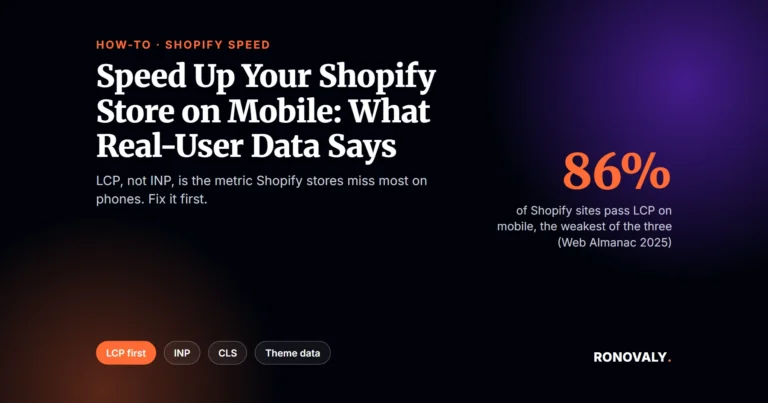
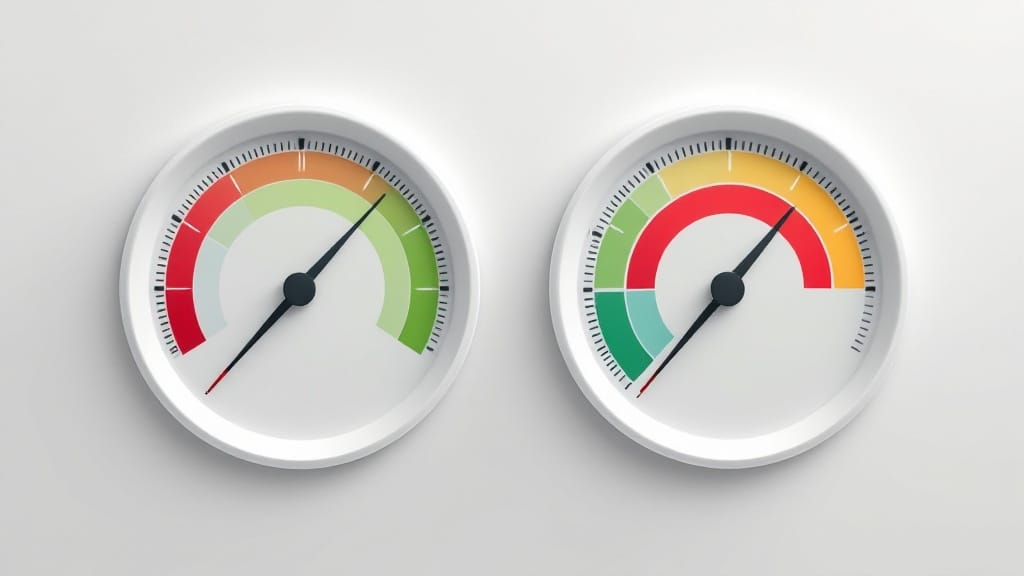
- LCP (loading): good is under 2.5 seconds, per web.dev.
- INP (responsiveness): good is under 200 milliseconds.
- CLS (visual stability): good is under 0.1.
- The old 0-100 score: Shopify called 50+ good and 70+ great, compared with similar stores.
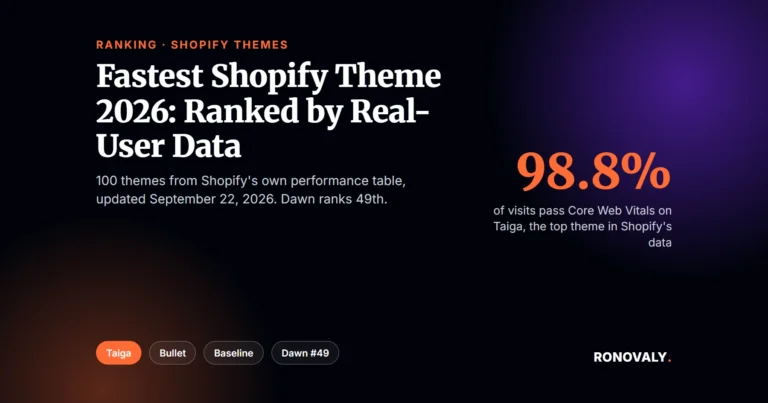
Stores with a big stack of apps, several tracking pixels, and a feature-heavy theme tend to struggle most. For how themes compare on real-user data, see our fastest Shopify themes ranking, built on Shopify’s own Core Web Vitals table.
What Actually Affects Your Shopify Store Speed
Four factors drive most of the gap between a slow store and a fast one.
1. Image weight
Images are often the heaviest part of a Shopify page. Large, uncompressed product photos are usually the biggest single lever, especially on collection pages that show 20+ products at once.
2. App count and quality
Each installed app can inject its own JavaScript and CSS into every page, whether or not it’s used there. A long app list tends to slow a store down, and the damage isn’t even: a few badly built apps can hurt more than many well-built ones.
3. Theme architecture
Older themes built on jQuery, heavy animation libraries, or bloated CSS frameworks limit your speed before you install a single app. See which themes do best on Shopify’s real-user data if you’re thinking of switching.
4. Third-party scripts
Tracking pixels, chat widgets, review platforms, and marketing tags each add scripts that can block rendering or delay interaction. Many stores run several at once without noticing the combined cost.

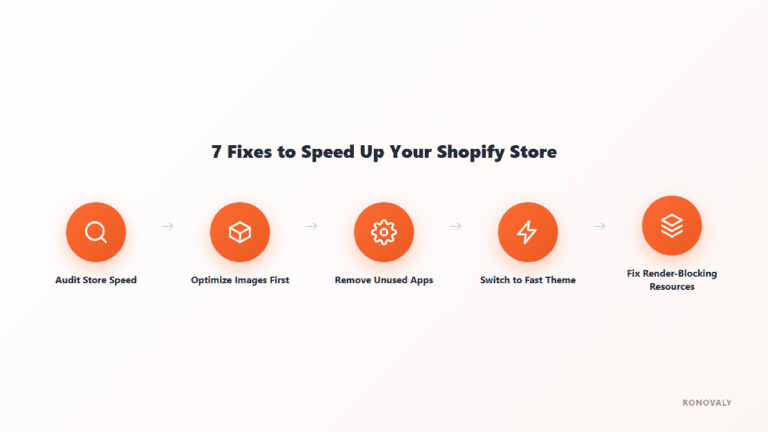
How to Fix a Slow Shopify Store
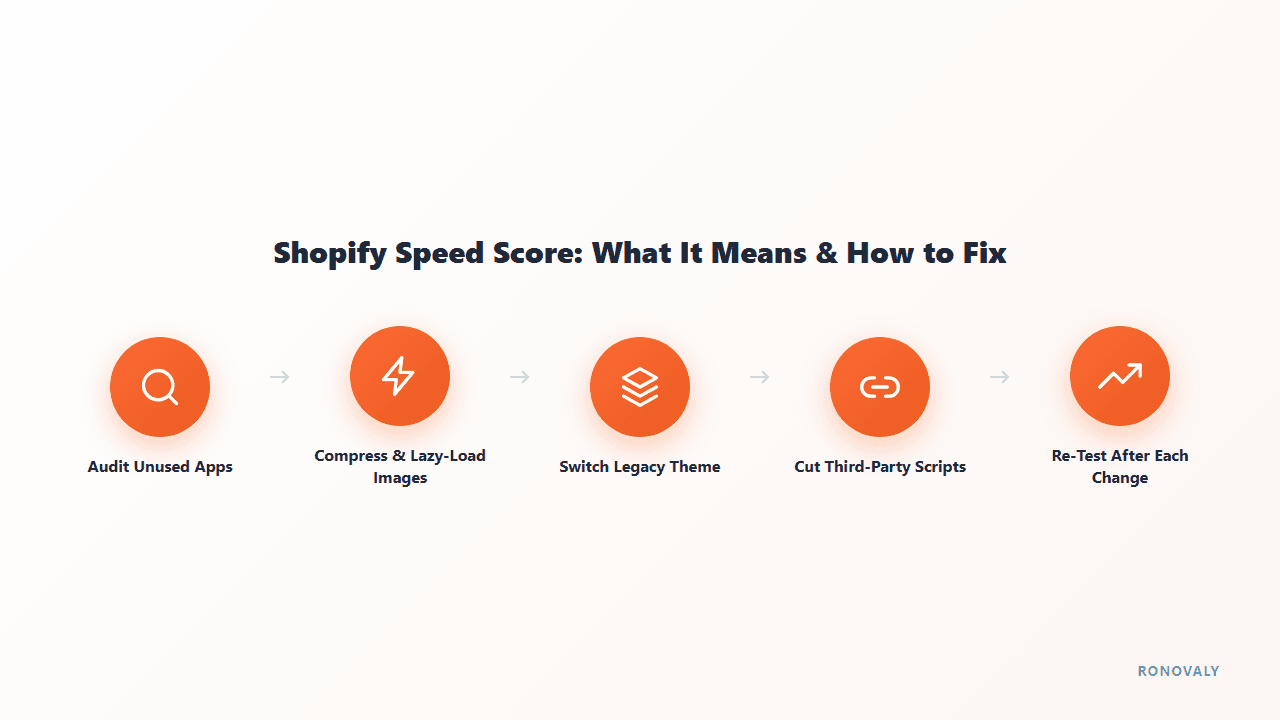
Step 1: Audit and remove unused apps
Shopify’s own performance guidance starts here for a reason: app scripts are the most common hidden cost on a store owner’s radar. Go to Settings → Apps and sales channels and list every installed app. For each one, ask: is this actively driving revenue or conversions right now? Uninstall anything dormant. For apps you keep, check their theme app embed settings and disable them on pages where they aren’t needed — a size-guide app doesn’t need to load on your homepage.
Step 2: Compress and lazy-load every image
Run your product images through a compression tool before upload, target WebP format, and confirm your theme lazy-loads below-the-fold images by default (Dawn and most 2024+ themes do this natively). Collection pages with 20+ product thumbnails see the largest gains here.
Step 3: Switch to a lightweight theme if you’re on a legacy one
If your theme predates 2023 or wasn’t built by Shopify or a performance-focused developer, check how it ranks before assuming app cleanup alone will fix things. A heavy theme sets a limit no amount of app trimming can break. See the theme ranking for Shopify’s real-user data on 100 themes.
Step 4: Cut third-party scripts to essentials
Audit every tracking pixel and embedded widget in Online Store → Preferences and your theme’s custom scripts. Consolidate analytics where possible — running Google Analytics, Meta Pixel, TikTok Pixel, and three separate email platform trackers simultaneously is common and expensive in load time.
Step 5: Re-run the test after each change
Don’t batch every fix and test once. Real-user data takes time to update, so isolate changes where you can to learn which fix helped. For faster feedback, run PageSpeed Insights on your top product URL after each change.

Common Mistakes That Keep Your Score Low
A common mistake is optimizing images while ignoring app bloat, or the other way round. The problem usually has several causes at once. A store with well-compressed images but a long app list can still be slow, because app scripts can outweigh image weight. And removing apps won’t lift the limit set by an old jQuery-based theme. The biggest gains usually come from doing all three: theme audit, app cleanup, and image compression. Each fix’s effect is partly hidden until the other two are handled.
A second common mistake was chasing the old admin score instead of Core Web Vitals. If your goal is search rankings, track LCP, INP, and CLS from real users, in Shopify’s web performance report or in PageSpeed Insights.
FAQ
What is a good Shopify speed score now?
Shopify’s current report rates each Core Web Vital as Good, Moderate, or Poor using real visitor data. Aim for Good on all three. Google’s “good” thresholds are LCP under 2.5 seconds, INP under 200 milliseconds, and CLS under 0.1, per web.dev. Under the old 0-100 score, Shopify described 50+ as good and 70+ as great.
Does the Shopify speed report affect SEO rankings?
The report itself doesn’t, but what it measures does. Google uses Core Web Vitals (LCP, INP, and CLS) from real Chrome users as a ranking signal. Shopify’s web performance report is based on the same kind of real-user data, so improving it tends to improve what Google sees.
Why does my Shopify speed data keep changing without me editing anything?
The report uses real visitor data from the past 30 days, and it can lag by up to 36 hours. Changes in who visits, which devices they use, and which pages get traffic all move the numbers, even with no change to your theme or apps.
How often should I check my Shopify speed data?
Monthly is enough for most stores, plus after any theme change or major app install or removal. Since the report uses 30 days of real-user data, give changes a few weeks to show up.
Can too many apps really hurt my store’s speed that much?
Yes. Each app can inject scripts into every page, whether or not it’s used there, and scripts competing for the browser’s main thread add delays beyond their file size. Removing dormant apps is one of the best-value fixes, and it often helps more than image work alone.
Key Takeaways
- Shopify’s admin now reports real-user Core Web Vitals (LCP, INP, CLS), replacing the old 0-100 Lighthouse-based speed score.
- Core Web Vitals from real users are what feed Google’s rankings, so the new report is a better SEO guide.
- Aim for Good on all three: LCP under 2.5 s, INP under 200 ms, and CLS under 0.1.
- Images, app count, theme architecture, and third-party scripts drive most of the difference.
- Fix theme, apps, and images together rather than one at a time, since their effects compound.
For the full optimization checklist, revisit the Shopify store speed optimization guide. If a theme switch is on the table, compare Shopify’s real-user data on 100 themes in our fastest Shopify themes ranking.
Want to see your own number? Use the free Shopify App Bloat Cost Calculator to estimate how much your current app stack is costing you in speed and revenue.
This post contains affiliate links. If you make a purchase through these links, we may earn a commission at no extra cost to you.