Shopify Checkout Extensibility Speed: A 2026 Guide
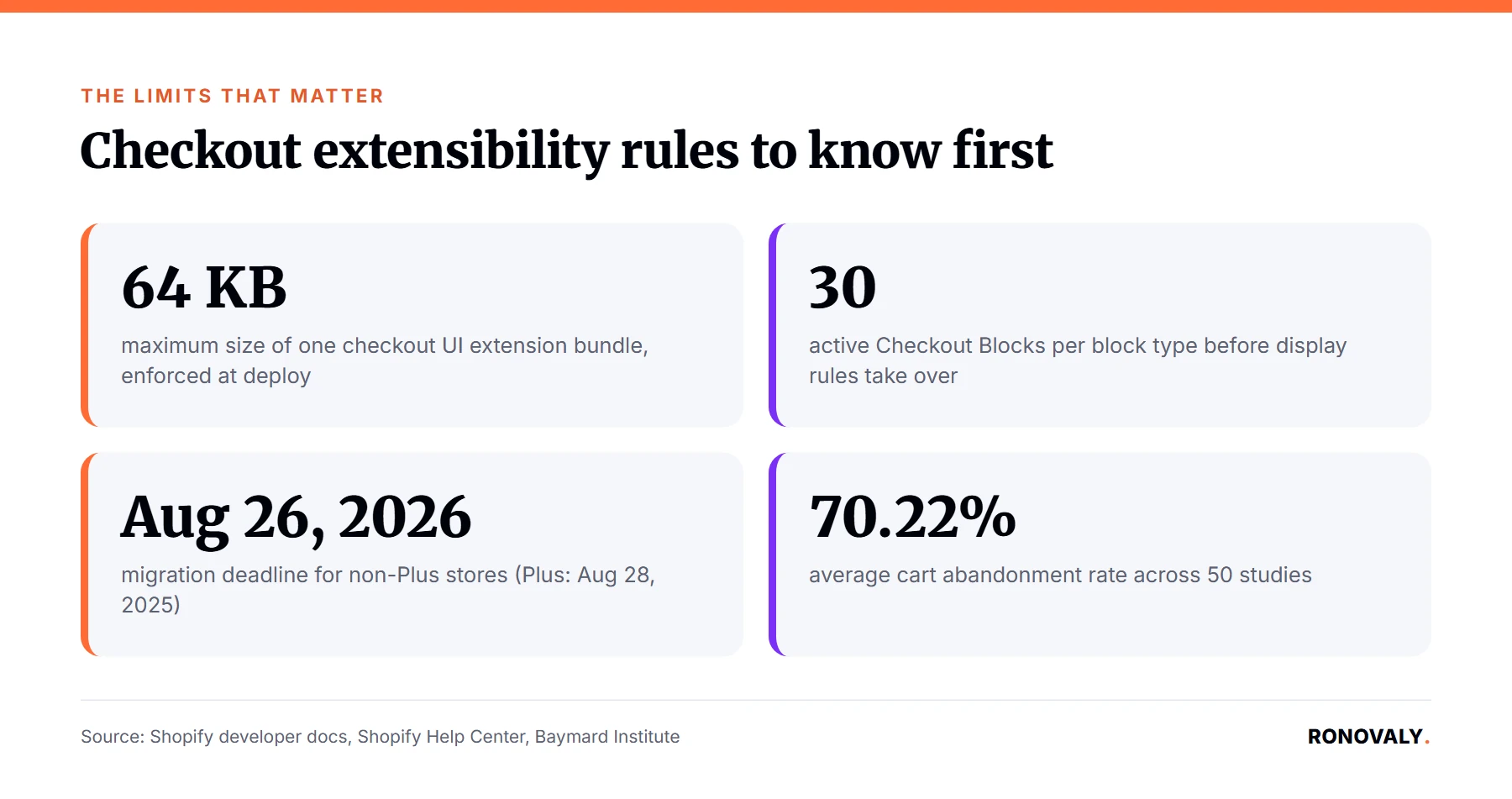
Both of Shopify’s checkout extensibility deadlines have now passed. Plus stores had to migrate off checkout.liquid by August 28, 2025. Every other plan had until August 26, 2026, according to Flatline Agency’s migration guide, last updated June 2026. As a result, the question I hear most from Shopify founders has changed. It is no longer how to migrate. It is why checkout got slower after they did. When you audit shopify checkout extensibility speed, the likely culprit is not Shopify’s platform. More often, it is what got stacked back on top of a checkout Shopify itself already engineered to be fast.
Shopify caps a single checkout UI extension bundle at 64 KB. It enforces that limit at deployment, specifically to protect load time, according to Shopify’s own checkout UI extensions documentation. However, that cap does not stop you from installing five separate extensions that each use their own slice of it. This guide walks through a repeatable audit method for checkout extensibility. Specifically, it covers which extension types actually cost load time, which ones are close to free, and how to decide what stays. This guide follows our editorial standard of citing only named, dated sources, and a human editor checked it before it went out. For general storefront speed fixes that are not checkout-specific, start with my Shopify store speed optimization guide first.
Key Takeaways
- Both checkout extensibility migration deadlines have passed. Plus stores needed to comply by August 28, 2025. Every other plan had until August 26, 2026, per Flatline Agency.
- A single checkout UI extension bundle cannot exceed 64 KB. Shopify enforces this at deployment, according to Shopify’s own developer documentation.
- Checkout Blocks supports up to 30 active blocks per block type. Beyond that limit, Shopify’s own display rules decide what actually renders, per the Shopify Help Center.
- Extensions that make too many changes in one buyer session can be rate limited by Shopify. As a result, they lose the ability to change checkout further that session.
- Not every extension type costs the same. Static trust badges are close to free. In contrast, anything that calls a live API on every render is the real cost driver.
- The average cart abandonment rate sits at 70.22 percent across 50 studies, according to the Baymard Institute. In other words, checkout friction is not a minor concern.
What You Need Before a Shopify Checkout Extensibility Speed Audit
By the end of this audit, you will know exactly which checkout extensions earn their place and which ones are quietly taxing every buyer’s load time. Here is what to have ready first.
- Admin access to Settings > Checkout in your Shopify store, plus access to the Apps section.
- A list of every app or custom extension currently active in checkout, including ones your team installed months ago and forgot about.
- Your Shopify Online Store Speed Score or a recent PageSpeed Insights mobile run, so you have a before number.
- Fifteen minutes on a real mobile device, not just a desktop browser, since checkout render cost shows up worst on mobile connections.
- Time: 45 to 60 minutes for the full audit and first round of cuts.
- Difficulty: Beginner. No code is required to complete this audit, though a developer helps for Step 4.
Step 1: Confirm You’re Actually Running Checkout Extensibility
By the end of this step, you will know for certain whether your checkout is still running any legacy code, since that changes what the rest of this audit even means.
Checkout Extensibility is Shopify’s current framework for customizing checkout entirely through defined UI extensions and Functions. It replaces the older model of directly editing checkout.liquid or Additional Scripts, which Shopify has now fully retired. Because both migration deadlines have passed, Shopify auto-upgraded any non-compliant store. It removed legacy checkout.liquid customizations, Additional Scripts, and script tags on post-purchase pages, with no grace period, according to Flatline Agency’s guide. Even if your migration looked clean, confirm nothing reverted. Go to Settings > Checkout and confirm you see the extension-based customization panel, not an “Edit code” link to checkout.liquid. If you still see legacy code references anywhere, that is worth resolving before you audit extension speed. Notably, legacy code is a separate, larger problem than extension stacking.
Step 2: Inventory Every Extension and What It Actually Does
By the end of this step, you will have a complete list of every checkout extension currently live, sorted by what it renders and when.
Checkout UI extensions are the individual app-installed or custom-built components that render inside a specific target area of Shopify’s checkout, such as a post-purchase upsell or a custom field. List every one of them active across Information, Delivery, Payment, and the Thank You and Order Status pages. For each one, note what type it is: a static content block, a form field, a live data widget, or a post-purchase offer. This matters because, as I break down in Step 3, these categories do not cost the same amount of load time. In fact, they cost differently even though they all count against the same 64 KB per-extension bundle cap. Many stores never do this inventory once, let alone on a schedule. That is exactly how five small extensions turn into a real speed problem nobody planned for.
Step 3: Weigh Each Extension Type Against What It Actually Costs
By the end of this step, you will know which of your extensions are structurally cheap and which ones are the real drag on checkout, before you cut anything.
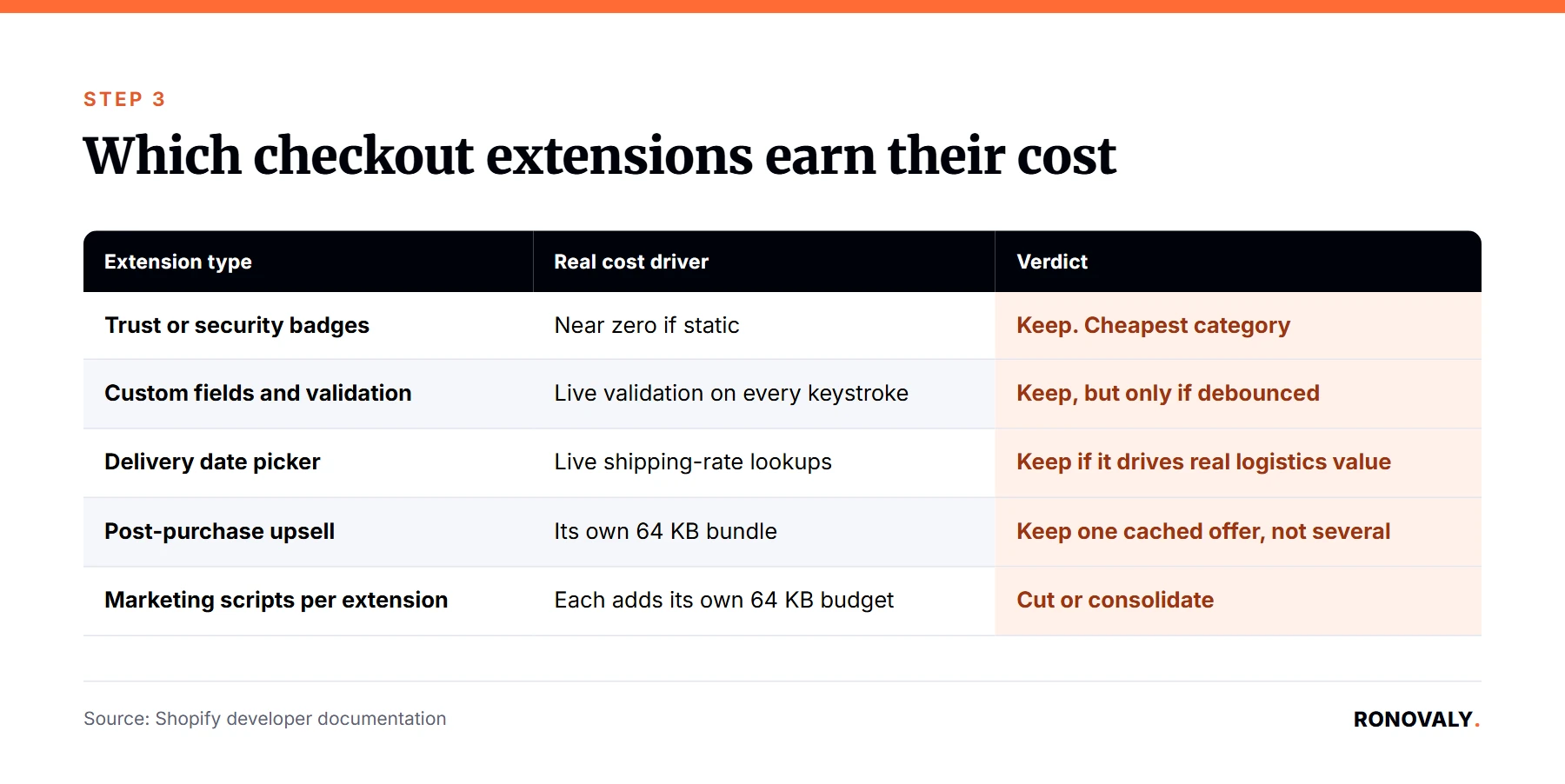
I built the table below from the platform mechanics behind checkout extensibility itself, not from a single blog post. It is the core of this audit. Specifically, the honest answer is that not every extension type deserves the same suspicion.
| Extension type | What it actually costs | Platform guardrail | Verdict |
|---|---|---|---|
| Post-purchase upsell (Thank You page) | Renders after payment completes, so it cannot delay checkout’s own steps, but it still counts toward its own 64 KB bundle cap and can add API calls if not cached | 64 KB bundle cap | Keep one, cached offer, not several |
| Custom fields / order notes / validation | Adds to the same bundle. Can fire a live validation call on every keystroke if built carelessly | 64 KB cap; batch changes with Promise.all | Keep, but only if debounced |
| Trust or security badges (static content) | Near-zero cost if it renders as a static image or block instead of a live-fetched widget | Checkout Blocks’ 30-active-blocks-per-type cap | Keep. Cheapest category to run |
| Delivery date picker | The calendar UI itself is light. Live shipping-rate and capacity lookups are the real cost driver | Same 64 KB cap; cache the rate lookup instead of re-fetching | Keep if it drives real logistics value |
| Stacked marketing or analytics scripts re-added per extension | Each one is its own 64 KB budget, so five small extensions can total far more script than one consolidated one | No single-extension limit stops this | Cut or consolidate |
Notice that the platform’s guardrails, such as the 64 KB bundle cap and the rate limit on repeated changes, apply per extension. In other words, they do not add up your total checkout weight for you. That total is entirely on you to track.
Step 4: Cut or Consolidate the Extensions That Fail the Test
By the end of this step, your checkout should be down to only the extensions that clearly justify their cost, based on the table in Step 3.
Start with the easiest cuts: any extension nobody on your team can explain the purpose of, and any live-data widget that duplicates information already visible elsewhere in checkout. This first pass alone often catches the worst offenders. For example, if two apps each render a separate trust badge block, combine them into one static block rather than running two extensions that do almost the same job.
If you find a custom field or date picker calling an API on every re-render instead of caching the result once, that is a fix for a developer, not a reason to remove the feature outright. Shopify’s own guidance is explicit about batching multiple changes with Promise.all and applying only the changes an extension needs, according to the checkout UI extensions documentation. Beyond that, one practical rule matters just as much: fetch data once on load, cache it, and avoid firing a fresh API call on every re-render. Removing unused extensions here is a narrower version of the same discipline behind our guide to auditing a full Shopify AI app stack for hidden subscription costs. It is the same idea, just scoped to checkout specifically instead of the whole app stack.
Step 5: Rebuild With a Bundle Budget, Not Just a Feature List
By the end of this step, you will have a written limit for how much bundle weight checkout extensions are allowed to use. This is not just a list of what is currently installed.
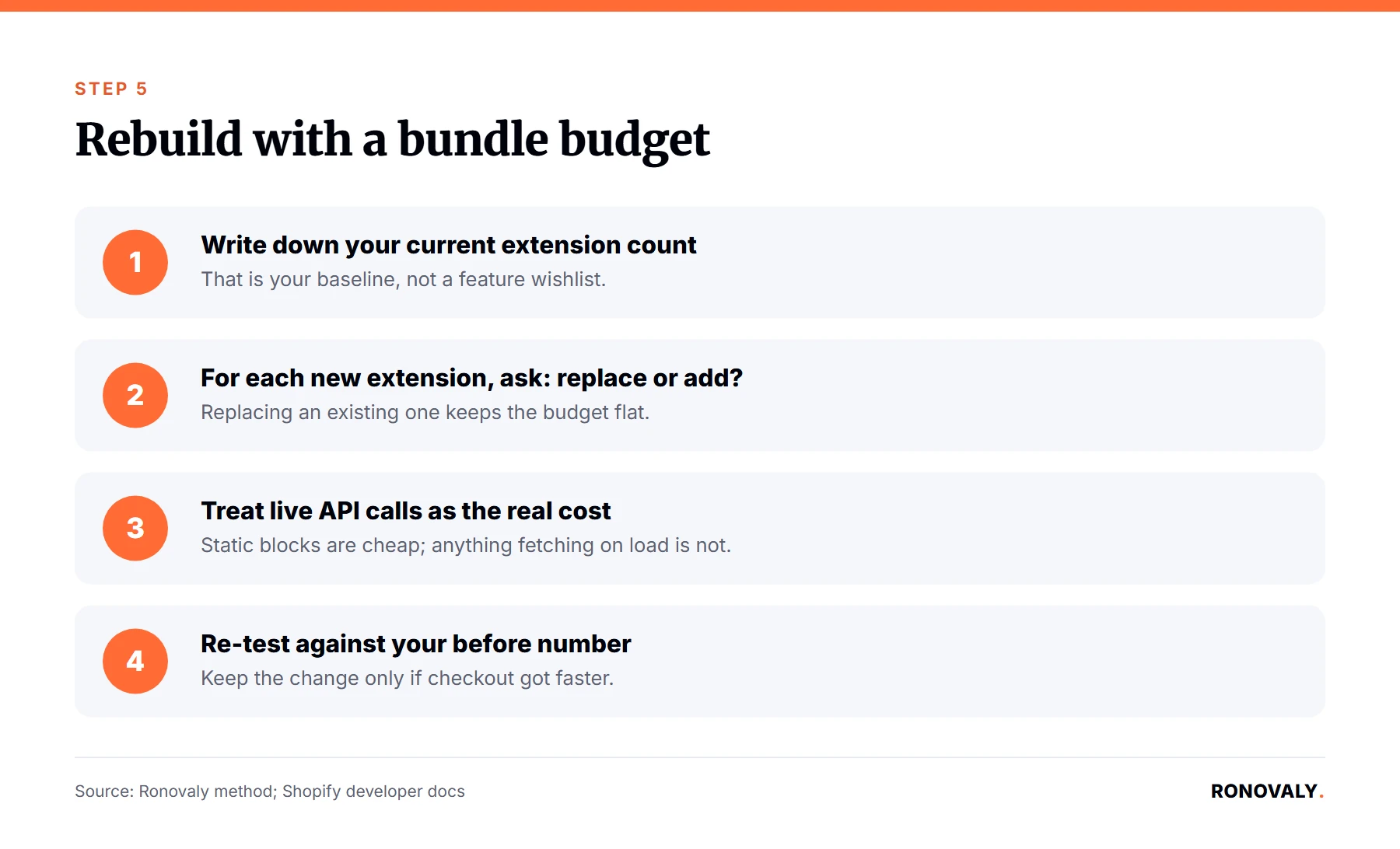
Rather than adding extensions until something breaks, set a working ceiling before you add the next one back. A simple starting rule: know your current total extension count and ask, for every new one, whether it replaces an existing extension or adds a new cost on top. Static content blocks are cheap enough that a few of them rarely matter. In contrast, anything that calls an external API on load is where a bundle budget earns its keep. That is the category most likely to push real load time past what a buyer notices. Importantly, test any new addition on a real mobile connection before rolling it out to all traffic, not just on your desktop browser during setup.
Step 6: Re-Test and Compare Against Your Before Number
By the end of this step, you will have a documented before-and-after comparison, not just a feeling that checkout seems faster.
Re-run the same PageSpeed Insights mobile test or check your Shopify Speed Score again, using the same device and connection type as your baseline in the prerequisites. For a deeper explanation of what that score actually measures and why it can move independently of checkout, see my breakdown of the Shopify speed score. Finally, document which extensions you removed and why. That way, the next person auditing this store, including future you, is not starting from zero.
Common Mistakes to Avoid
The most common mistake is treating every extension as equally risky. This leads founders to either cut nothing out of fear or cut everything and lose real functionality. Why does this keep happening? Usually because nobody separated the cheap extensions from the expensive ones first. What else goes wrong?
Blaming Shopify’s platform instead of your own extension stack. Shopify’s checkout is fast by construction, with a hard 64 KB cap per extension enforced at deployment. In fact, slow checkout after migration is almost always what got added back on top, not the platform underneath it.
Never inventorying what is actually installed. Extensions added by a past hire, a trial app nobody cancelled, or a theme partner’s default bundle add up silently. It’s easy to never list every active checkout extension in one place.
Treating static and live-data extensions the same. A trust badge block costs almost nothing. In contrast, a field that calls an API on every keystroke costs real time. Lumping them together means cutting the cheap, useful ones and keeping the expensive, low-value ones.
Skipping the mobile re-test. Checkout performance shows up worst on mobile, where connections are slower. As a result, a desktop-only check after cleanup can miss whether the cuts actually helped where it matters.
Assuming the platform’s guardrails add up your total weight. The 64 KB cap and the 30-block limit both apply per extension or per block type, not to your checkout as a whole. Notably, nothing stops five compliant extensions from adding up to a genuinely heavy checkout.
What Success Looks Like
If you completed this audit, you should now have a documented list of every checkout extension, a clear reason each one stays, and a bundle budget for what gets added next. Your before-and-after PageSpeed Insights or Speed Score numbers should show a measurable improvement, particularly on mobile. As a next step, put this audit on a recurring quarterly schedule. New extensions get added the same way old ones did: one at a time, without anyone tracking the total.
Frequently Asked Questions
How many checkout extensions is too many for Shopify checkout speed?
There is no single number Shopify publishes, since the platform enforces a 64 KB cap per extension bundle rather than a total-checkout limit. In practice, the extension-type table above matters more than a raw count. A checkout running six static content blocks is lighter than one running two extensions that each call a live API on every render.
Does Shopify’s 64 KB bundle limit guarantee my checkout stays fast?
No. The 64 KB limit is enforced per individual extension at deployment, according to Shopify’s own documentation, so it stops any single extension from becoming huge. It does nothing to stop the combined weight of several compliant extensions from adding up, which is the actual failure mode this audit targets.
What happened to my old checkout.liquid customizations now that the migration deadline passed?
If your store did not migrate before its deadline, Shopify auto-upgraded it and removed the legacy checkout.liquid code, Additional Scripts, and script tags on post-purchase pages automatically, with no grace period, according to Flatline Agency’s migration guide. Anything you want to keep needed to be rebuilt as a checkout UI extension before that date.
Do post-purchase upsell extensions slow down the actual checkout, or only the Thank You page?
They render after payment completes, so they cannot delay the checkout steps a buyer completes before paying. They still count toward their own 64 KB bundle budget, so an unoptimized upsell extension can slow the Thank You page itself, even though it never touches the payment flow. Upsell suites add several of these at once; our Rebuy review lists what its checkout and post-purchase package includes.
How do I audit which checkout extensions are worth keeping?
Inventory every active extension, sort each one by whether it is a static block or a live-data widget, and weigh it against the extension-type table in Step 3 of this guide. Static, low-cost extensions rarely need cutting. Anything calling an external API on every render deserves a closer look before you decide.
Do checkout extensions affect my Shopify online store speed score?
Checkout and storefront speed are measured separately in most Shopify speed reporting, so a heavy checkout will not always move your general Speed Score. It will still affect real buyer-facing checkout load time and can show up in a dedicated PageSpeed Insights or Lighthouse mobile run against your checkout URL specifically.
Can I still use custom CSS or JavaScript in Shopify checkout today?
Not the way checkout.liquid allowed it. Checkout Extensibility works through Shopify’s defined UI components and extension APIs instead of open HTML, CSS, or JavaScript injection, which is part of why the platform can enforce a hard bundle size cap in the first place.
Next Steps
You now have a repeatable audit method for checkout extensibility speed. First, confirm you are fully migrated. Then inventory every extension, weigh each one against what it actually costs, and cut or consolidate the ones that fail the test. Finally, set a bundle budget before adding the next one back. Importantly, run this quarterly, since checkout extensions accumulate the same quiet way unused apps do.
If you have not audited your broader app stack yet, my guide to auditing a Shopify AI app stack for hidden subscription costs covers the same discipline applied storewide. Likewise, if checkout is fast but the rest of your storefront still lags, our guide to removing unused Shopify apps walks through that broader cleanup.
I’m Alex Carter, and I write about AI tools and automation for Shopify and DTC brands at Ronovaly. You can read more about how I test these workflows on real stores on our About page. Every statistic in this piece is fact-checked against its named source before publish, and questions or corrections are welcome through Contact.
This post contains affiliate links. If you make a purchase through these links, we may earn a commission at no extra cost to you.